

Buying Your First Static Residential IP: A Beginner’s Guide



Clean IP picks: Static IPs from $1.5 each, Dynamic IPs from $0.5/GB


Before purchasing a static residential IP, determine your target location, IP type, protocol, and bandwidth requirements. You can then proceed with the purchase, proxy configuration, and connection testing.
For businesses that require a consistent network exit, such as cross-border e-commerce and overseas social media management, choosing the right IP resource helps maintain a consistent network environment.
What to Consider Before Buying a Static Residential IP
1. Determine Whether Your Business Needs a Fixed IP
Static residential IPs are proxy IPs provided through residential ISP resources that remain fixed throughout the rental period.
They combine a consistent network exit with residential ISP attribution, making them suitable for tasks that require the same IP address over time, such as managing cross-border e-commerce accounts, operating overseas social media accounts, and accessing services protected by IP allowlists.
If your business requires frequent IP changes, such as web scraping, SEO rank tracking, or collecting data from multiple regions, dynamic residential IPs may be a better fit. Here is a comparison of three common proxy types:
Note that static residential IPs, ISP proxies, and IPs actually hosted on residential broadband connections are not necessarily the same across all providers.
Before purchasing, verify the ASN, ISP attribution, IP type detection results, and actual network performance rather than relying on the product name alone.
2. Choose Your Target Country, City, and ISP
Select an IP location based on the region where your business operates. For example, you might choose a US residential ISP for the American market or a Tokyo-based IP for operations in Japan.
If your business requires a specific city, check whether the provider has available IPs in that location before purchasing.
IP geolocation databases may show a city that differs from the actual network location. After purchasing, use multiple IP lookup tools to cross-check the location.
3. Check Dedicated Access and IP Type
A dedicated IP is assigned to a single user during the agreed rental period and is not shared with other customers.
Dedicated access means that the resource is not shared during your rental period. It does not necessarily mean the IP has never been used by anyone else.
When choosing a native IP, you can also check its ASN, ISP, and geolocation information.
Native IPs generally indicate that the IP's registration location matches the target region. However, native status does not guarantee that an IP has no usage history or will never trigger platform verification. A reliable assessment requires checking multiple factors.
4. Choose a Protocol and Bandwidth
▸ SOCKS5: Suitable for applications that need to route different types of network traffic through a proxy. UDP support depends on the provider's network configuration.
▸ HTTP/HTTPS: Suitable for web browsing, browser proxy settings, and software that supports HTTP proxies.
Choose a bandwidth tier based on your workload. Basic web browsing and account management generally do not require high bandwidth. For video streaming or large file transfers, pay closer attention to available bandwidth and network stability.
IPDEEP proxies require an internet connection outside mainland China. Make sure your network environment meets this requirement before purchasing.
How to Buy a Static Residential IP on IPDEEP
Using IPDEEP as an example, the process from account registration to proxy configuration involves the following steps:
① Register for an IPDEEP account and log in
② Select Static Residential Proxies
③ Choose a country, city, and IP type
④ Configure the protocol, bandwidth, and rental period
⑤ Review your order and complete payment
⑥ Retrieve your proxy connection details
⑦ Configure and test your IP
Let's walk through each step.
1. Register and Log In
Visit the official IPDEEP website, create an account, and log in. Once signed in, you can view your proxy resources and account overview in the dashboard.
2. Select Static Residential Proxies
Find the Static Residential Proxy section in the dashboard.
Available resources are divided into regular and promotional sections. The promotional section offers discounted prices on selected locations, while the regular section covers a wider range of countries and regions.
Promotional prices vary depending on availability and ongoing campaigns. Locations such as Germany, Mexico, and the UK may have different discounts at different times.
Always check the purchase page for current pricing. Promotional prices should not be treated as fixed long-term rates.
3. Choose a Country, City, and IP Type
On the purchase page, review the following options:
▸ Country and Region: Select your target country and an available city.
▸ IP Type: Choose between Standard Native and Premium Native based on your business needs. Bandwidth options and protocol support may differ. Premium Native plans generally offer more flexible bandwidth options, so check the specifications for your selected location before purchasing.
4. Configure Bandwidth and Rental Period
Select your bandwidth limit and subscription period. IPDEEP Static Residential Proxies offer bandwidth options of 10, 20, 30, 40, and 50 Mbps. Longer subscription periods may come with discounts.
Choose a bandwidth tier that meets your actual requirements rather than automatically selecting the highest option.
5. Review Your Order and Complete Payment
Check the number of IPs, selected locations, bandwidth, and total cost. After confirming the details and agreeing to the terms of service, choose a payment method. IPDEEP supports payment methods such as Alipay and WeChat Pay.
6. Retrieve Your Proxy Connection Details
After completing your purchase, retrieve your proxy credentials from the order or purchased resources section of the dashboard. A standard proxy connection includes four key details:
▸ Host: The proxy server's IP address or domain name.
▸ Port: The port assigned to the selected protocol.
▸ Username: Used for authentication.
▸ Password: The corresponding authentication password.
How to Configure a Static Residential IP After Purchase
Once you have your proxy credentials, configure them in the application or environment where you plan to use the proxy. For more details, see our guide to using and configuring static residential IPs. Here are two common setup scenarios.
1. Configure the Proxy in an Antidetect Browser
Combining a fingerprint browser with a static residential IP is a common approach to separating browser environments and network connections for cross-border operations.
For detailed setup instructions, visit the IPDEEP Proxy Integrations page or contact customer support.
2. Configure the Proxy in Other Software
To use the proxy with standalone software, open its network or proxy settings, select the appropriate protocol, and enter your Host, Port, Username, and Password.
Supported proxy protocols and authentication methods vary by application. Check the options available in your software before configuring the connection.
3. Verify the Proxy Connection
After configuration, use an IP lookup tool to confirm that your public IP has changed and that the detected country and city match your selected location.
How to Check Static Residential IP Quality
1. Check Your Exit IP and Geolocation
Use an IP lookup tool to confirm that your current exit IP matches the static IP you purchased. Check whether the detected country and city match your expectations. For a more detailed evaluation, see our guide on how to evaluate static residential IP quality.
2. Check ASN and ISP Attribution
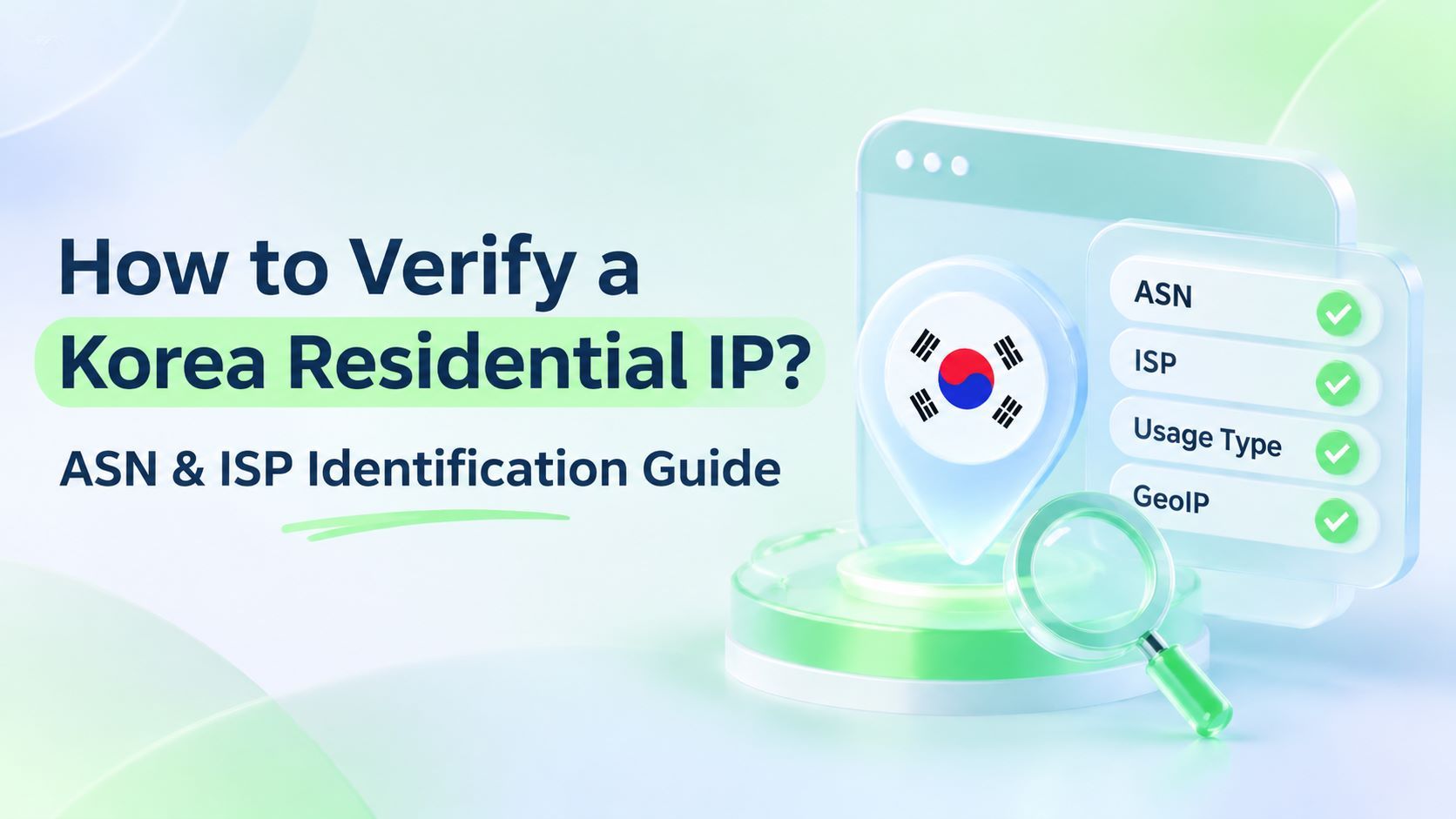
Review the ASN and ISP information to verify that the IP's network attribution matches the provider's description.
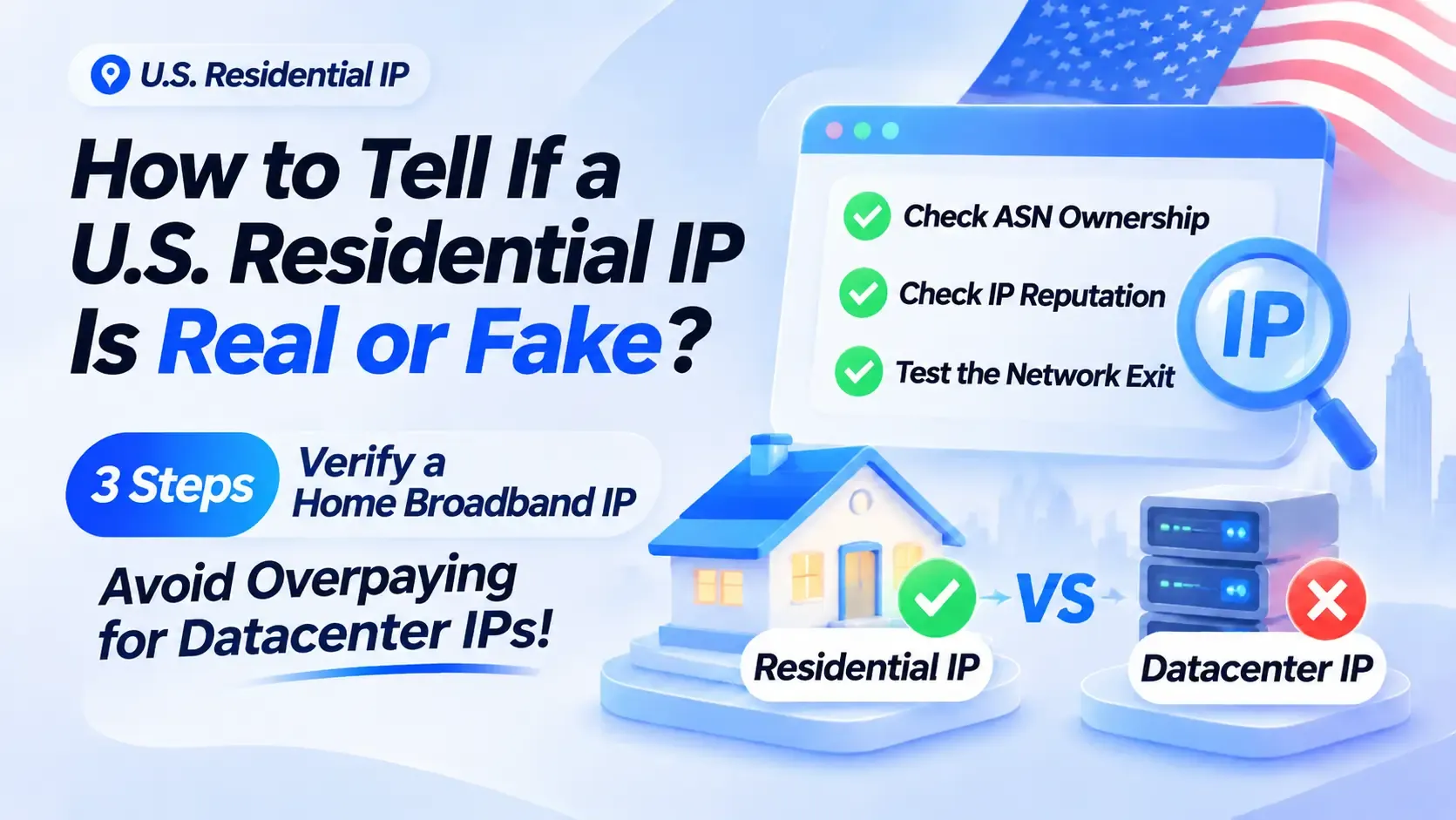
Different IP databases may classify the same IP differently. If the results do not match, do not judge IP quality based on a single website's Residential or Datacenter label. Instead, consider the ASN, ISP, geolocation, proxy flags, and actual access performance together.
If the ASN belongs to a residential ISP but an IP classification database labels the address as Datacenter or Proxy, check the provider's resource specifications and test its actual performance before concluding that there is a quality issue.
3. Check IP Classification and Access Performance
In addition to checking basic IP information, visit your target websites to confirm that pages load normally and that you do not encounter frequent verification challenges or access restrictions.
If this is your first purchase, start with a small number of IPs. Test the connection, verify the location, and evaluate performance in your actual workflow before expanding your purchase.
4. Troubleshoot Common Connection Issues
If you encounter connection timeouts or authentication errors, try the following troubleshooting steps. For more details, see our guide to troubleshooting static residential IP connection issues.
▸ Check Your Authentication Details: Make sure your username and password are correct. Pay attention to easily confused characters, such as the letter O and the number 0.
▸ Check for Local Proxy Conflicts: Make sure no other proxy tools are running simultaneously, as overlapping proxy connections may cause conflicts.
▸ Check Your IP Allowlist: If you use IP allowlist authentication, confirm that your current public IP has been added correctly.
Tips for Managing Static Residential IPs After Purchase
1. Map Each IP to Its Business Environment
Keep a record of which account, browser profile, and purpose are assigned to each static residential IP. This helps prevent accidental network overlap.
2. Manage Renewals and Expiration Dates
Static IPs are rented for a fixed period. If you do not renew before expiration, the resource may be released and reassigned. Consider enabling auto-renewal or renewing in advance, subject to the provider's renewal policy.
If your business depends on using the same exit IP over time, confirm the provider's renewal deadlines, auto-renewal rules, and IP retention policy in advance. This helps prevent the loss of an existing IP due to a delayed renewal.
3. What to Do If Your IP Stops Working
If your IP cannot connect or its detected location is incorrect, first check your authentication details and local network environment using the troubleshooting steps above. If the issue persists, contact the provider to verify the node status or ask about the available replacement options.
Frequently Asked Questions (FAQ)
Q1: Why Should I Choose a Dedicated Static Residential IP?
A dedicated IP is assigned to a single user during the rental period. This helps reduce interference associated with sharing the same exit IP with other users.
Q2: Does a Native Static Residential IP Guarantee That It Won't Be Detected as a Proxy?
No. Native status indicates that the IP's registration location matches the target region. However, platform verification also depends on factors such as the IP's usage history, account activity, and network environment.
Q3: Will My IP Address Remain the Same After Purchase?
A static residential IP generally remains unchanged during the rental period. However, the address may change due to node failures or resource adjustments. Whether you can retain the same IP after renewal depends on the provider's renewal policy.
Q4: What Should I Do If the Proxy Won't Connect or Shows the Wrong Location?
First, check that your proxy credentials, protocol, and port are correct. Make sure no other proxy tools are interfering with the connection, and verify your IP allowlist settings if applicable. If the issue persists, contact the provider to check the node status and available replacement options.