




Static Residential IP Connection Failed? Causes & Fixes



Clean IP picks: Static IPs from $1.5 each, Dynamic IPs from $0.5/GB


In fields like cross-border e-commerce, social media management, and market research, static residential IPs are widely used to maintain independent, stable operational environments thanks to their genuine residential network properties and consistent connectivity.
However, during day-to-day use, users occasionally encounter issues like "connection failed" or "unable to access web pages," which can disrupt normal business operations.
Combining networking principles with hands-on experience, this article breaks down the common causes of connection failures and provides a systematic troubleshooting guide to help you quickly diagnose and restore your connection.
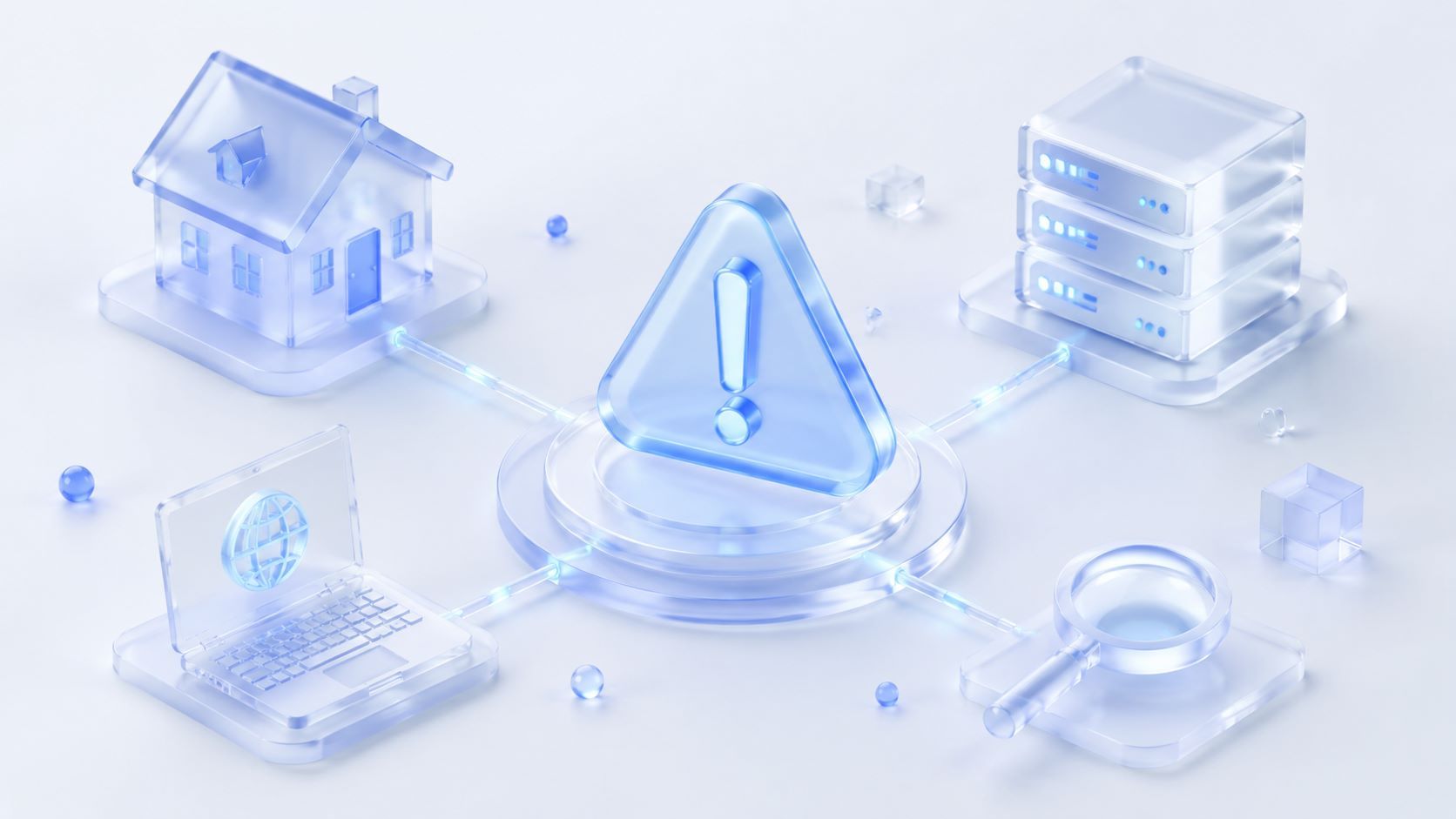
How to Tell If It's a Proxy Issue or a Local Network Problem?
When connection issues pop up, narrowing down the scope early can save a lot of troubleshooting time. You can use the table below for a quick initial diagnosis:
Common Causes of Static Residential IP Connection Failures
Finding the root cause is the first step in troubleshooting. Based on common network failure scenarios, connection issues usually stem from the following areas:
1. Incorrect Proxy Configuration: This is the most common human error. It includes typos in the proxy server address or port number, or accidentally including extra spaces/missing characters when copying and pasting credentials (username and password).
2. Network Instability and Routing Fluctuations: Local network instability, temporary ISP outages, or cross-border network routing fluctuations can cause proxy requests to fail to send or time out mid-way.
3. Firewall and Antivirus Interference: Firewalls or antivirus software on your local system might flag and block specific proxy connections, severing communication entirely.
4. Triggering Target Site Risk Controls: If the IP was previously used for high-frequency requests or showed unusual activity, the target site might flag it.
This usually doesn't cut off your internet connection entirely, but it can result in frequent CAPTCHAs, 403 Forbidden errors, or restricted access to specific pages.
5. Account or Service Issues: Expired proxy plans, insufficient balance, or scheduled maintenance on specific nodes by the proxy provider.
6. Application Protocol Mismatch: Some apps or software require a specific proxy protocol (e.g., mandating SOCKS5). Configuring a different protocol type can lead to handshake failures or blocked connections.
Step-by-Step Troubleshooting Guide
When facing connection issues, we recommend running through this step-by-step process:
1. Verify Basic Configurations
Double-Check Parameters: Go through the IP address, port, username, and password line by line. Use a "click-to-copy" button where available to prevent manual typos or trailing spaces.
Confirm the Proxy Protocol: Make sure the selected protocol (HTTP/SOCKS5) matches what your application and workflow require.
2. Test Local Network and Hardware
Disable Proxy and Test Direct Connection: Try turning off the proxy and visiting the target site directly. If it still fails, the issue lies with your local network or the target site itself. If it works, the issue is isolated to the proxy path.
Restart Network Equipment: Rebooting your local router and modem can resolve issues caused by stale local DNS caches or temporary network congestion.
3. Adjust System and Security Settings
Check Firewall Rules: Temporarily disable your firewall or antivirus. If the connection restores, whitelist your proxy software or the associated ports in your security settings.
Flush DNS Cache: Outdated DNS caches can cause resolution conflicts.
Windows Users: Open Command Prompt (CMD) and run: ipconfig /flushdns
macOS Users: Open Terminal and run: sudo dscacheutil -flushcache; sudo killall -HUP mDNSResponder
4. Advanced Diagnostics and Status Verification
Check Proxy Connectivity: Use an IP checking tool or terminal commands (like curl) to test port responsiveness, and verify the IP type, location, and ASN info.
If the port gives no response at all, contact your provider to confirm the node status.
Switch Location Nodes: If the target site enforces regional restrictions, try switching to a static residential node in another city or country.
Best Practices for Long-Term Network Stability
To minimize connection failures at the source and keep multi-account environments running smoothly, consider the following strategies:
Choose a Provider with Premium Routing: Reliable providers (like IPDEEP) offer healthier, genuine residential ISP pools along with active node management and route optimization to ensure lasting connectivity.
Maintain Reasonable Usage Habits: After acquiring a new IP, run basic connectivity checks in a stable environment first. Avoid triggering massive, high-frequency automated requests right away to maintain the IP's health score.
Isolate Business Environments: Assign dedicated static residential IPs to different business accounts, and pair them with antidetect browsers to keep operating environments isolated and lower cross-account risk.
For more stable, highly anonymous global static residential proxy resources and technical support, feel free to visit the IPDeep Official Website.
Frequently Asked Questions (FAQ)
Q: Which is more stable: static or dynamic residential IPs?
Static residential IPs retain the same exit IP address over long periods, offering higher connection continuity—ideal for tasks requiring persistent logins (like social media management or e-commerce store operations).
Dynamic IPs, on the other hand, rotate periodically or per request, making them better suited for large-scale data collection.
Q: Will using a static residential IP slow down my internet speed?
Actual speeds primarily depend on the distance to the target website, local ISP bandwidth quality, and the proxy provider’s infrastructure. Professional providers optimize network routing to minimize latency and maintain stable transfer rates.
Q: Why does it show "Unable to Connect" even though my IP details are correct?
Beyond parameter errors, check your account balance or package expiration date. Additionally, certain corporate or local networks enforce strict port blocking or firewall policies—contact technical support for further diagnostic help if needed.
Q: Can I use one static residential IP for multiple business accounts?
It is not recommended. To keep your operational environments properly isolated, it's best to assign dedicated network exits to important accounts, reducing the risk of account association caused by sharing a single IP environment.