





What are Proxies? Must-Know Basics!



Clean IP picks: Static IPs from $1.5 each, Dynamic IPs from $0.5/GB


In today’s internet era, proxy servers have become essential tools for protecting privacy, enabling secure access, and improving network efficiency. If you’ve heard of “proxies” but aren’t sure what they really are, how to use them, or what proxy configuration means, this article will provide you with comprehensive answers. Whether you’re a beginner or someone looking to enhance your online security, this complete proxy guide will be your must-have resource.
What is a Proxy?
Simply put, a proxy is an intermediary server located between your device and the internet. When you access websites through a proxy, your requests are first sent to the proxy server, which then forwards them to the target website. This not only hides your real IP address but also helps bypass geographical restrictions, improve access speed, and prevent certain security threats.
Proxies are more than just tools for “anonymous browsing”; they are methods for network management and optimization. They are widely used in cross-border e-commerce, social media management, ad verification, market research, and many other fields, helping users achieve secure, stable, and efficient online operations.
What Does Proxy Server Mean?
A proxy server is a server device or system that carries out proxy functions. It acts as a “bridge” between users and the internet, transmitting data between access requests and responses. Proxy servers not only hide users’ IP addresses but can also cache frequently accessed data to speed up access. Additionally, they can filter malicious content, monitor network traffic, and even enforce access control.
Depending on different needs, there are various types of proxy servers, commonly including:
Residential Proxy: Uses real home broadband IPs, offering high security and stealth, suitable for long-term operations and account management.
Datacenter Proxy: Hosted in data centers, fast and low-cost, ideal for large-scale crawling and quick access.
Mobile Proxy: Uses mobile network IPs, suitable for high anonymity requirements and mobile device simulation.
How to Use a Proxy Server?
Using a proxy server is very simple and usually involves the following steps:
1. Choose a Suitable Proxy Provider
Select a reputable and stable proxy platform like IPDeep, which offers various proxy types to meet different business needs.
2. Obtain Proxy Server Information
After purchase, the proxy provider will supply the server address, port number, authentication method (username and password), and other details.
3. Configure the Proxy on Your Device or Software
You can set proxies in browsers, operating systems, or specific applications. For example, in a browser, simply go to the network settings and enter the proxy server address and port.
4. Test the Proxy Connection
Use tools to check if the proxy is working and confirm that the IP address has been successfully changed, ensuring secure and anonymous access.
What is Proxy Configuration?
Proxy configuration refers to the process of setting up proxy servers on your device or application. Proper configuration enables your device to access the internet through the proxy server. Proxy configuration usually involves entering the proxy address, port, and authentication information, and sometimes selecting the proxy protocol (such as HTTP, SOCKS5, etc.).
Correct proxy configuration can effectively enhance network security, prevent IP leaks, help bypass geo-restrictions, and ensure your online activities remain private and smooth.
How to Configure a Proxy?
1. Configure Proxy in Browser
Using Google Chrome as an example, follow these steps to set up a proxy:
Open the browser.
Enter chrome://settings/ in the address bar and press Enter.
Click on “System” in the left sidebar.
Click “Open your computer’s proxy settings.”
In the Internet Properties window, click the “Connections” tab, then “LAN settings.”
In the Local Area Network (LAN) Settings, check “Use a proxy server for your LAN.”
Enter the proxy IP address in the “Address” field and the corresponding port in the “Port” field.
If your proxy requires authentication, check “Use the same proxy server for all protocols,” then enter your username and password.
Click “OK” to save.
2. Configure Proxy in Windows
Click the network icon in the bottom-right corner of the Windows desktop and select “Network & Internet settings.”
In proxy settings, find “Manual proxy setup.”
Turn on “Use a proxy server” and enter the proxy IP address and port.
If authentication is needed, enter your username and password.
Save and exit settings.
3. Configure Proxy in Applications
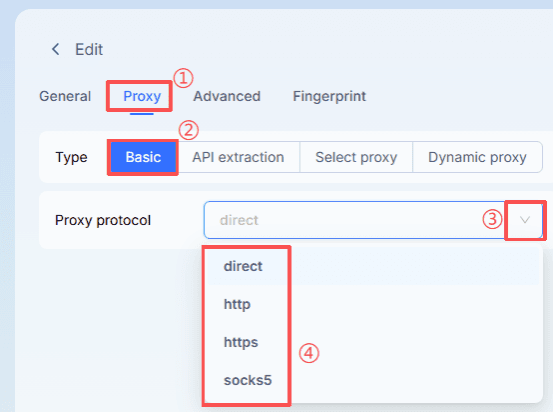
Taking the MostLogin anti-detect browser as an example:
Open the MostLogin client and click “Create profile.”
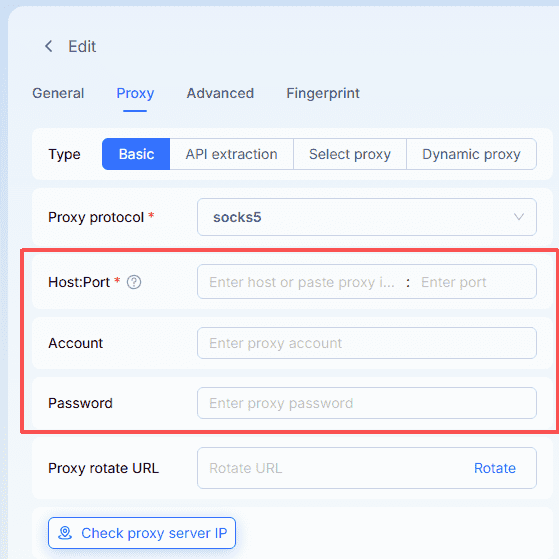
Click “Proxy,” choose “Basic,” and select your proxy type from the dropdown list.
Enter your proxy information in the blank fields below.
Conclusion
Proxy technology is not just about “changing IPs”; it is a comprehensive system for protecting privacy and optimizing network experience. Whether you aim to safeguard account security, improve crawling efficiency, or access restricted content across regions, proxies are indispensable tools. To learn more about professional proxy knowledge and high-quality proxy services, visit the IPDeep official website.