





Proxifier Setup Guide: Global Proxy, Rules & IP Rotation
 Daniel Wong
 2026-02-25 17:27
 Other
OtherIn many real-world scenarios, applications themselves do not support proxy settings, or their built-in proxy features are too limited to meet advanced control requirements. In such cases, Proxifier becomes a highly practical solution.
This article will guide you step by step from scratch, covering:
· How to set up a global proxy
· How to route specific applications through a proxy (rule-based routing)
· How to implement automatic rotation of multiple proxy IPs
Whether you are running cross-border business, managing multiple game accounts, or conducting network testing, this tutorial can be applied directly in practice.
What Is Proxifier?
Proxifier is a desktop proxy management tool that can:
· Force any application to use a proxy
· Support SOCKS / HTTPS proxies
· Configure fine-grained routing rules
· Create proxy chains to enable IP rotation
· View real-time network connection logs
⚠ Note:
Proxifier itself does not provide proxy IPs. You need to prepare your own proxy server.
Scenario 1: Setting Up a Global Proxy (All Traffic Through Proxy)
Suitable for:
When you want all network requests on your computer to go through the proxy server.
Step 1: Add a Proxy Server
Open Proxifier:
Menu bar → Profile → Proxy Servers → Add
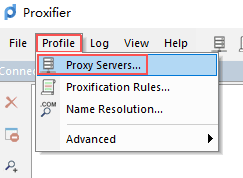
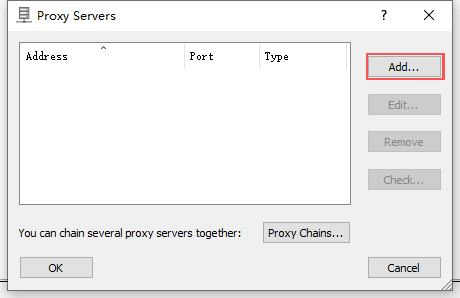
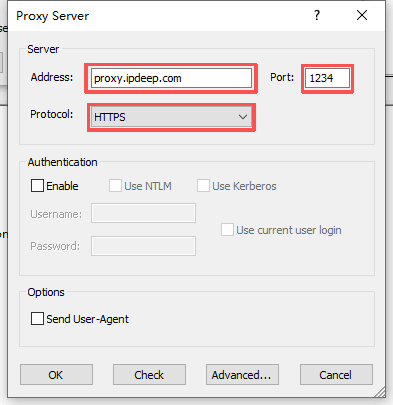
Fill in the following information:
· Address: Proxy IP or hostname
· Port: Port number
· Protocol: Select SOCKS5 or HTTP
Example:
Step 2: Authentication Settings (If Required)
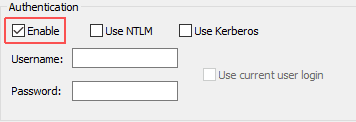
If the proxy requires a username and password:
In the Authentication section, check Enable
Enter Username and Password
Click OK
Step 3: Test the Proxy
Select the proxy in the proxy list:
Check → Start Testing
If the test is successful, the proxy is ready to use.
Step 4: Confirm the Default Rule
Go to:
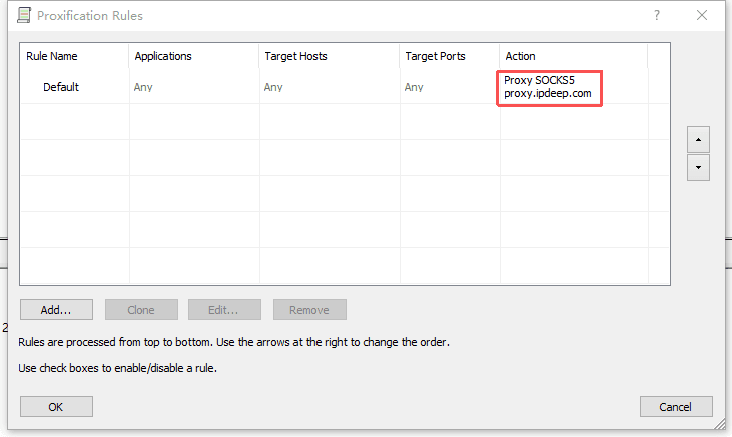
Profile → Proxification Rules
Make sure:
The Action of the Default rule is set to the proxy you just added.
After completing these steps:
✔ All system traffic will be routed through the proxy.
Scenario 2: Rule-Based Routing (Specific Applications Use Proxy)
Suitable for:
· Only routing your browser through the proxy
· Only routing a specific game through the proxy
· Isolating IPs in a multi-account environment
Step 1: Add a Proxy (Same as Above)
Step 2: Create a New Rule
Go to:
Profile → Proxification Rules → Add
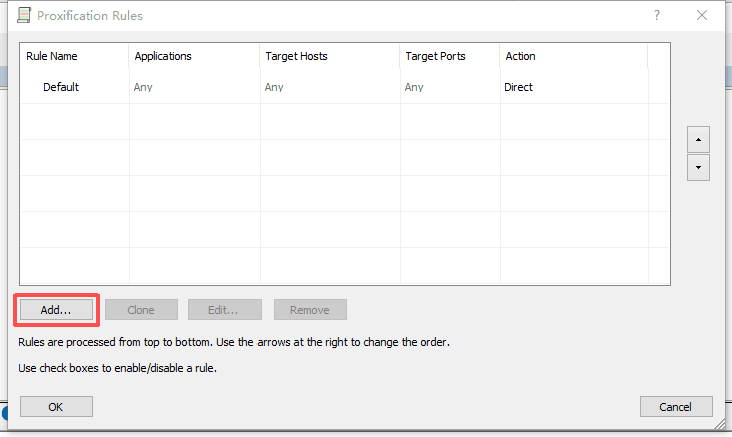
Fill in:
· Rule Name: Custom name
· Applications: Click Browse to select the program
· Action: Select the proxy server
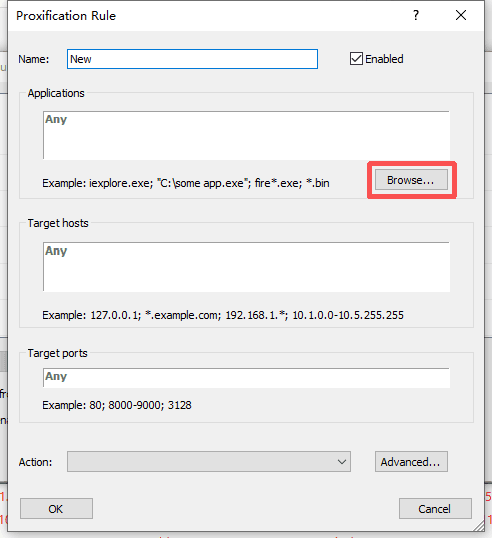
For example:
Select Chrome or a specific game application.
Step 3: Set Rule Priority
In the rule list:
· Rules at the top have higher priority
· The Default rule is usually set to direct connection or another proxy
Drag your new rule to the appropriate position.
How to test:
Open the target application
Visit an IP lookup website
Check whether the IP address has changed.
After completion:
✔ Only the specified application uses the proxy
✔ Other applications continue using the local network
Scenario 3: IP Rotation
Suitable for:
· Managing multiple accounts
· Preventing a single IP from being restricted
· Basic load balancing
Method 1: Purchase rotating proxy IPs from a provider and import directly
High-quality proxy providers such as IPDeep offer large IP pools and allow users to customize rotation methods and duration for easier management.
Method 2: Manual Advanced Configuration
Step 1: Add Multiple Proxies
Add multiple proxy IPs using the method described earlier.
Step 2: Create a Proxy Chain
Go to:
Profile → Proxy Servers → Proxy Chains...
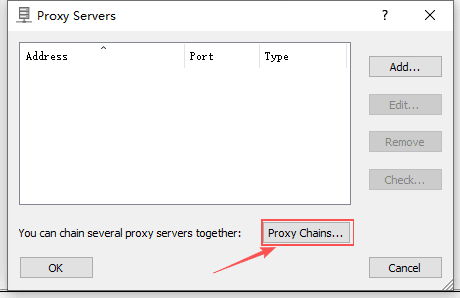
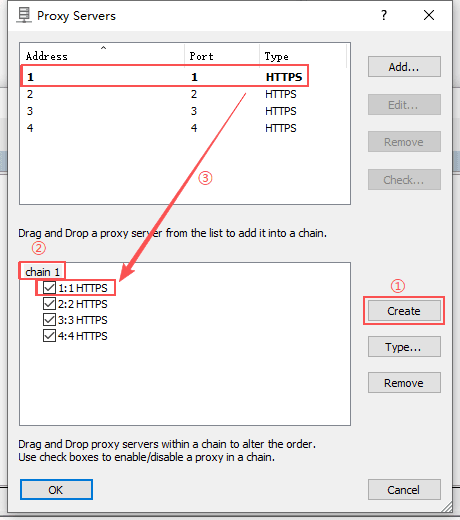
Actions:
· Click Create
· Name the proxy chain
· Drag multiple proxies into the chain
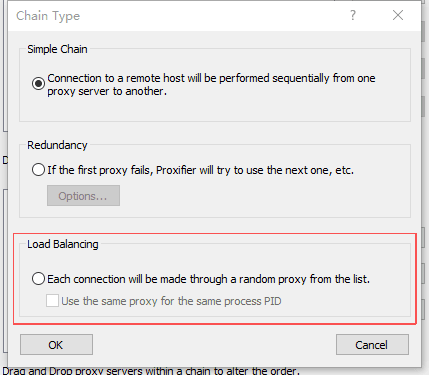
Step 3: Set the Rotation Mode
Click:
Type → Select Load Balancing
This mode will randomly rotate traffic between multiple proxies.
Step 4: Bind the Proxy Chain to a Rule
Go to:
Profile → Proxification Rules
Change the Action to the proxy chain you just created.
After completion:
✔ Proxifier will automatically rotate between multiple IPs
✔ Achieves simple IP rotation functionality
Frequently Asked Questions
1. Why can’t the proxy connect?
Check the following:
· Whether the IP address is correct
· Whether the port number is correct
· Whether a username and password are required
· Whether the local firewall is blocking the connection
2. What if the rule does not take effect?
Make sure:
· The rule is enabled
· It is placed above the Default rule
· The correct application path is selected
Conclusion
With this tutorial, you have now mastered:
✔ Global proxy configuration
✔ Application-level rule-based routing
✔ Automatic multi-IP rotation
IPDeep provides high-quality proxy IPs, including:
and many other proxy types, with over 10 million high-quality IP resources covering 200+ countries and regions worldwide. Create an account now and start your free trial of our premium proxy services!