





How to Set Up a Telegram Proxy? How to get It?



Clean IP picks: Static IPs from $1.5 each, Dynamic IPs from $0.5/GB


Telegram has gained global popularity thanks to its strong privacy protection and rich features. However, due to differences in network environments, many users may experience slow loading speeds or even connection failures.
In such cases, using a proxy is often an effective solution.
This article will walk you through how to obtain Telegram proxies, explain the differences between various proxy types, and show you how to set them up quickly.

Types of Telegram Proxies
Before setting things up, it's important to understand the three main proxy protocols supported by Telegram:
MTProto Proxy: This is the official protocol developed by Telegram. It offers strong encryption, fast connection speeds, and supports one-click sharing. Most free proxy channels provide this type.
SOCKS5 Proxy: A versatile and widely compatible protocol. It can be used not only with Telegram but also with many other applications. Typically, it requires a server address, port, username, and password.
HTTP/S Proxy: Mainly used for web traffic. Although Telegram supports it, its security and stability are generally inferior to the other two, so it is less commonly used.
How to Get a Telegram Proxy?
There are three main ways to obtain a proxy:
1. Subscribe to Proxy Channels
There are many Telegram channels dedicated to sharing free MTProto proxies.
How: Search for "Proxy" in Telegram and join these channels.
Usage: Click the links posted in the channel (usually starting with t.me/proxy?server=...), then tap "Connect" to complete the setup.
2. Purchase Professional Proxies
For users who require high anonymity or dedicated IPs, purchasing SOCKS5 proxies from a professional proxy provider is a reliable option, such as IPDeep.
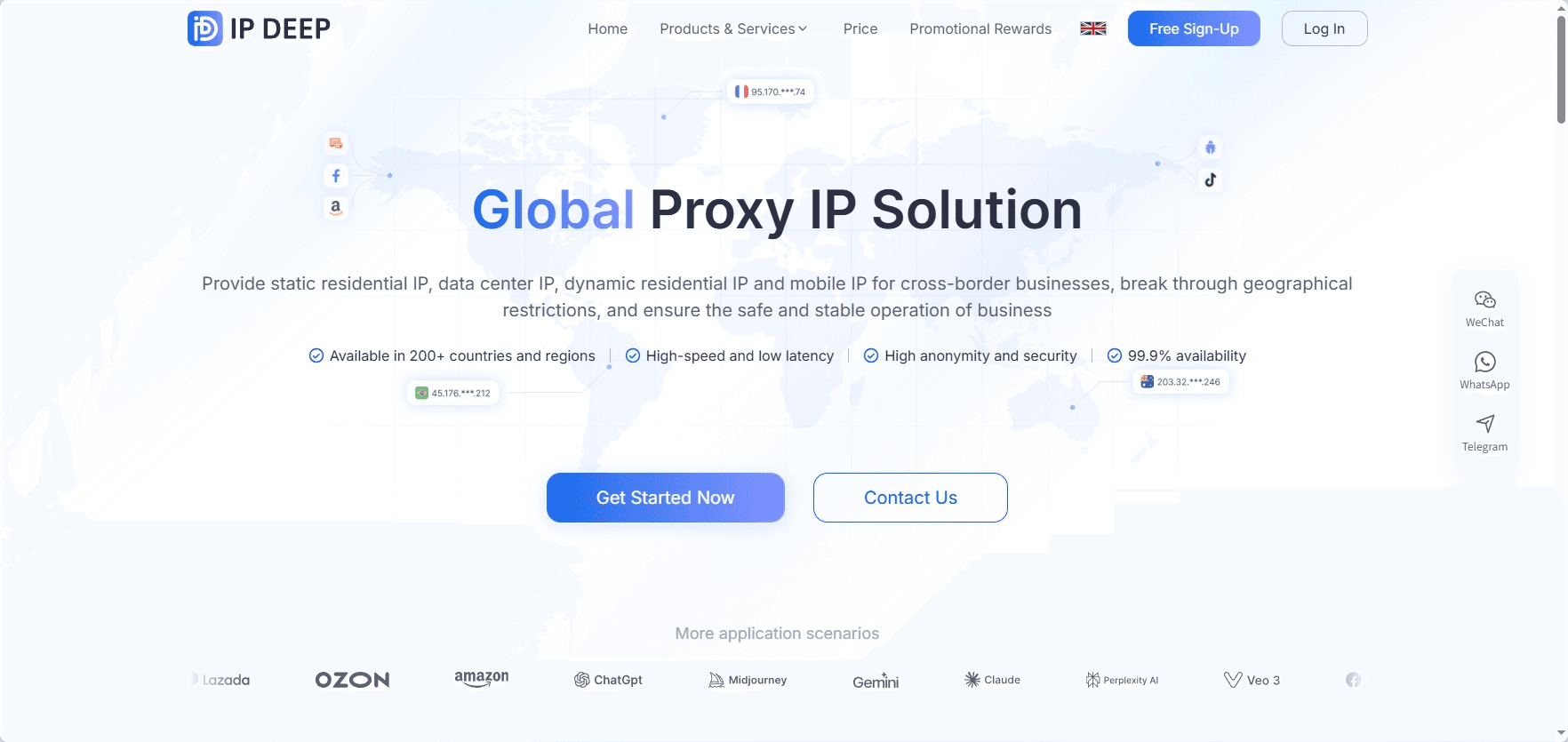
Compared to free proxies, paid options generally perform better in terms of stability, speed, and availability. After purchase, you’ll receive configuration details such as server IP, port, username, and password, which can be directly used in Telegram.
In addition, these services often offer multiple location options (such as Japan, Singapore, and Hong Kong), making them ideal for long-term use or multi-account management.
3. Use Local Proxy from a Virtual Network
If you're already using a virtual network tool, you can obtain a local proxy address as follows:
Local Address: Usually 127.0.0.1
Port: Depends on your tool’s configuration (for example, Clash defaults to 7890)
This method is often the most stable, as it leverages your existing network setup.
Telegram Proxy Setup Guide
iOS Setup Steps
1. Open Telegram and tap "Settings" in the bottom right corner.
2. Go to "Data and Storage".
3. Scroll down and tap on Proxy
4. Tap Add Proxy
5. Choose MTProto or SOCKS5, enter the required details, and tap Done in the top right corner
Android Setup Steps
1. Tap the three-line menu in the top left corner and select Settings
2. Go to Data and Storage
3. Scroll down to the bottom and tap Proxy Settings
4. Enable Use Proxy, then tap Add Proxy
5. Enter the required parameters and save
Desktop Setup Steps
1. Click Settings in the left sidebar
2. Go to Advanced
3. Under Connection Type, select Use custom proxy
4. Choose the proxy type and enter the details
Common Issues & Tips
1. Why can’t my proxy connect?
· Expiration: Free proxies (especially MTProto) often expire quickly. It’s recommended to keep multiple options or refresh them regularly.
· Port Blocking: Some local networks may block certain ports. Try switching to a different port.
· Input Errors: Double-check that there are no extra spaces in the IP address or port number.
2. Is using a proxy safe?
MTProto proxies encrypt your messages, meaning the proxy server can only see that you are connecting to Telegram, but not the content of your chats.
· Privacy Tip: Although message content is encrypted, the proxy server may still log your connection IP. If you have higher privacy requirements, consider using a reputable paid SOCKS5 proxy or setting up your own server.
3. Why is it slower after enabling a proxy?
The farther the physical distance of the proxy server, the higher the latency. Try choosing servers closer to your location (such as Singapore, Hong Kong, or Japan).
Conclusion
Your Telegram experience largely depends on your network environment and proxy configuration. Choosing the right proxy type, obtaining stable and reliable nodes, and setting them up correctly can resolve most connection issues.
If you need better stability, privacy, or long-term use, opting for high-quality paid proxies is often the more reliable choice.
Finally, remember: a proxy is just a tool. What truly matters is the quality of the IP and how you use it. Avoid frequently switching nodes, stick to stable IPs, and maintain good usage habits to ensure a smooth and consistent experience.