

How to Set Up IPDEEP Proxies in Dolphin Anty



Clean IP picks: Static IPs from $1.5 each, Dynamic IPs from $0.5/GB


All IPDEEP proxy products must be used in an overseas network environment, which customers are responsible for setting up.
The network environment used in this tutorial has already been configured for overseas access.
Dolphin Anty is a popular antidetect browser that lets you create a separate browser environment for each account. It isolates cookies, cache, and browser fingerprints to reduce signals that could link multiple accounts.
Combined with IPDEEP proxies, each browser profile can use a separate network exit, helping isolate accounts at both the browser environment and network levels.
In this guide, we'll use IPDEEP as an example to show you how to create browser profiles in Dolphin Anty, add proxies in bulk, and assign them to multiple profiles. This will help you build a scalable multi-account workflow.
How to Create a Browser Profile
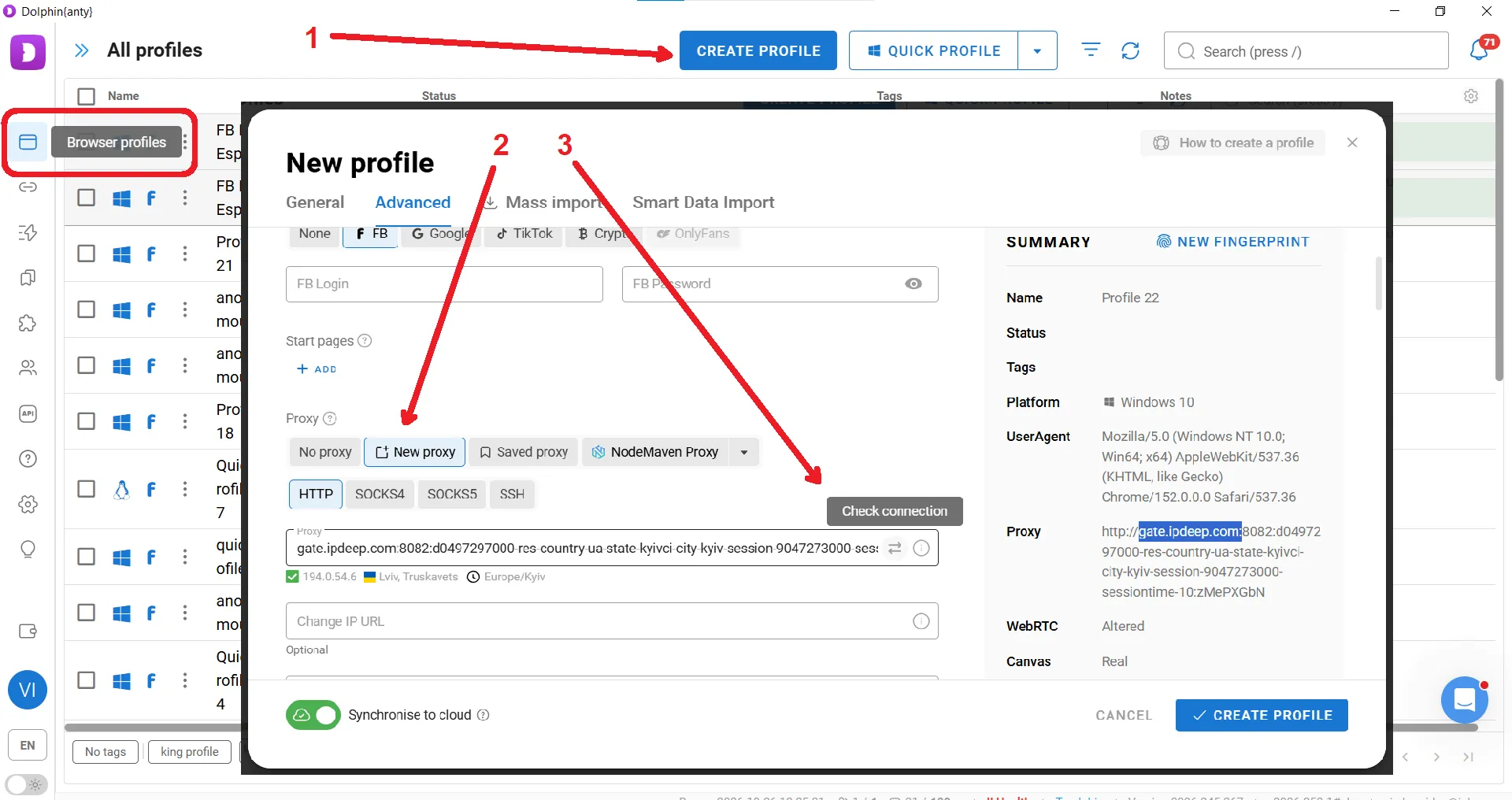
First, open the Profiles section in Dolphin Anty and click the button to create a new profile. Next, add a proxy IP and give the profile a custom name if needed. After entering the proxy details, click Check Connection to verify that the proxy is working properly.
Dolphin Anty also offers advanced settings. You can manually adjust fingerprint parameters such as User-Agent, WebRTC, Canvas, WebGL, WebGL Info, screen resolution, and RAM.
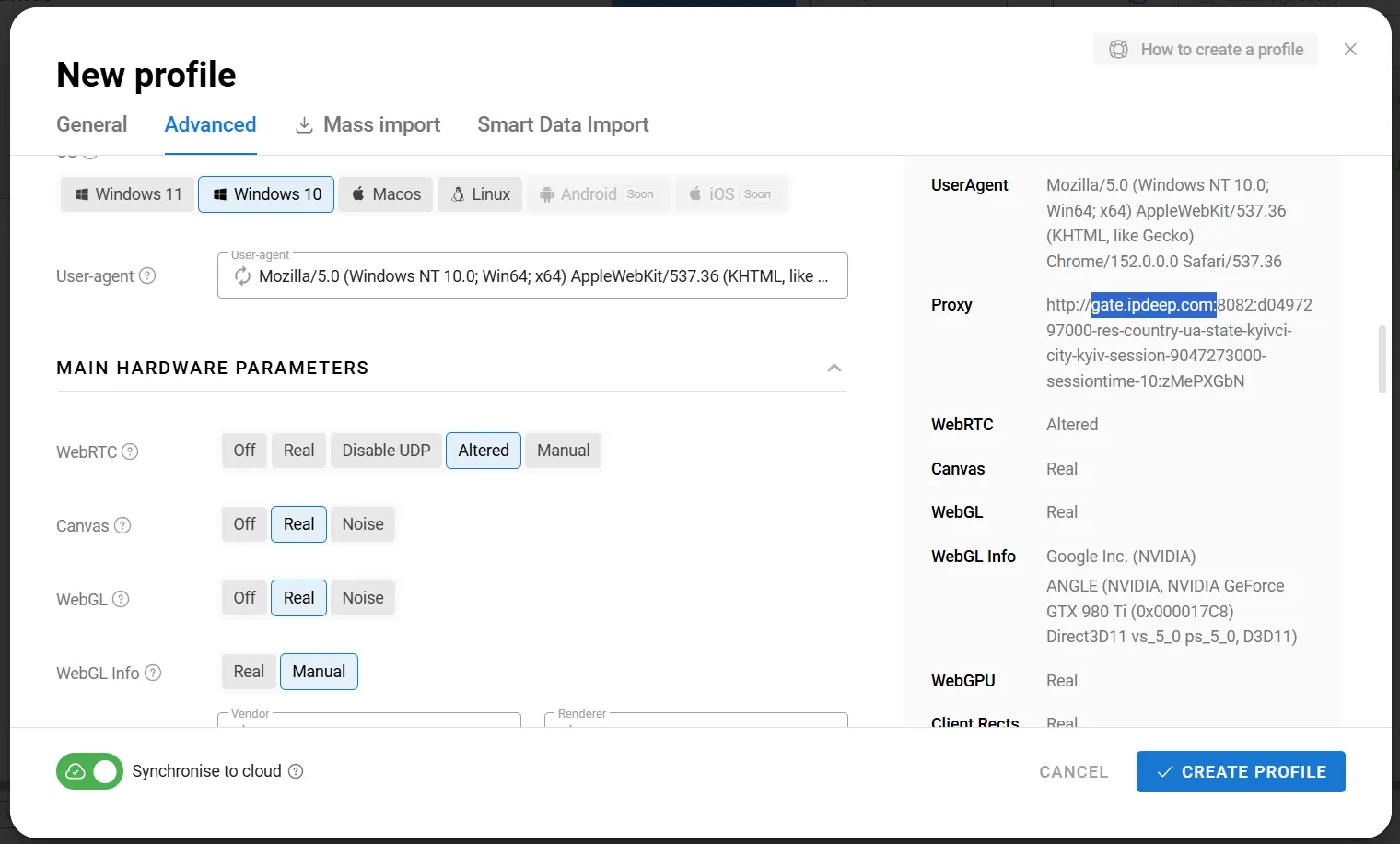
However, unless you have a specific reason to change these settings and understand how browser fingerprinting works, it's best to keep the automatically generated fingerprint. This helps avoid inconsistencies between fingerprint parameters.
How to Add IPDEEP Proxies
An antidetect browser alone isn't enough because it doesn't hide or change your IP address. You'll need a proxy to route your traffic through a different network exit.
For this tutorial, we'll use IPDEEP as an example. IPDEEP offers dynamic residential, static residential, mobile, and datacenter proxies. Its network covers more than 200 countries and regions, with a pool of over 30 million IP addresses.
After purchasing your proxies, open the Extract Proxy IP page in your account.
Here, you can choose the proxy type, country or region, connection settings, and number of ports. You'll also need to select a proxy protocol and output format.
In this example, we'll generate five proxy IPs located in Kyiv, Ukraine, using the SOCKS5 protocol.
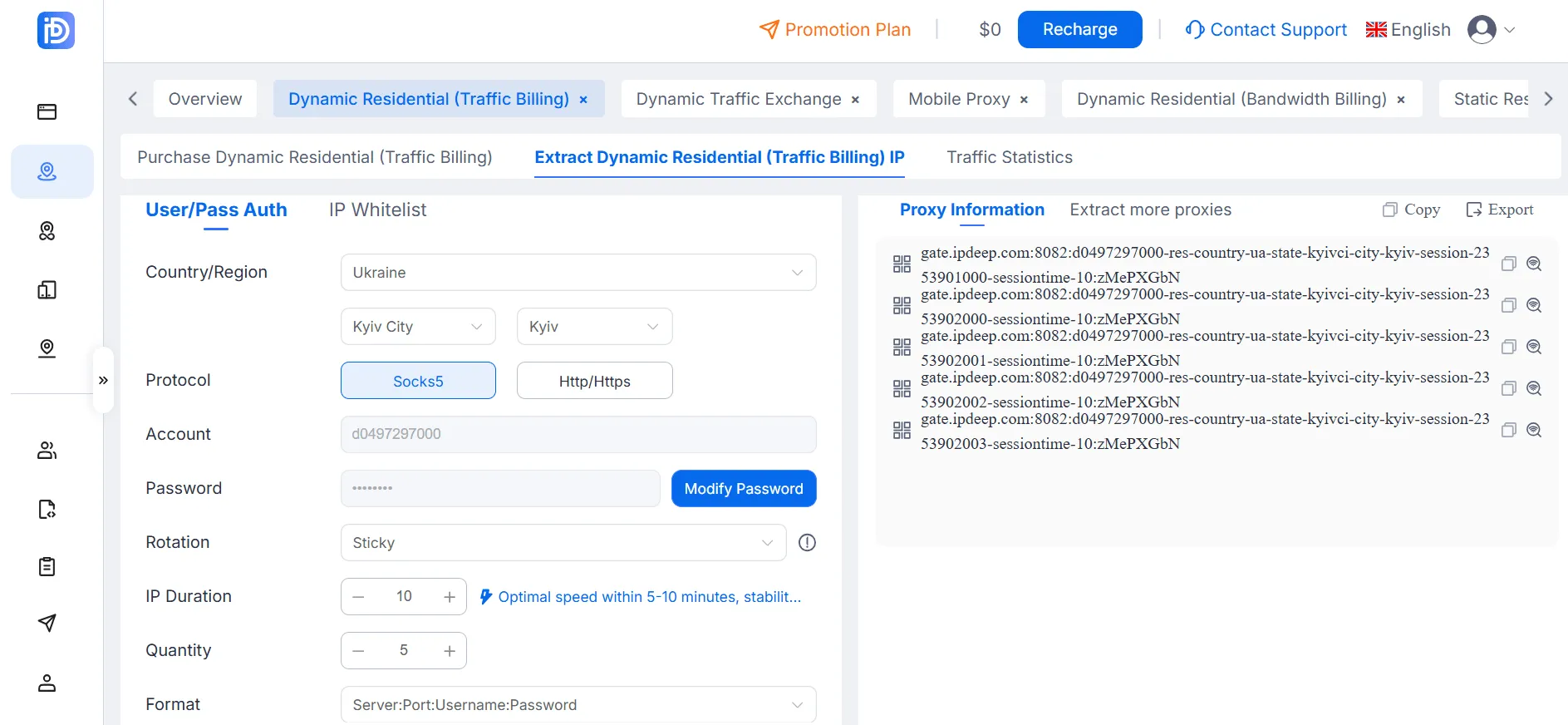
As shown above, you can add a proxy directly when creating a browser profile. However, Dolphin Anty also provides other ways to add proxies, which can be more convenient when managing multiple connections.
How to Add Multiple Proxies in the Proxies Section
Dolphin Anty's Proxies section lets you add multiple proxy ports at once and check their connection status. In the example above, we've already generated five proxy ports in IPDEEP. Instead of adding them one by one, you can import them all at once.
Open the Proxies section and click Add above the proxy list. Next, switch to the Mass Addition tab and paste the list of five proxy ports copied from your IPDEEP account into the corresponding field.
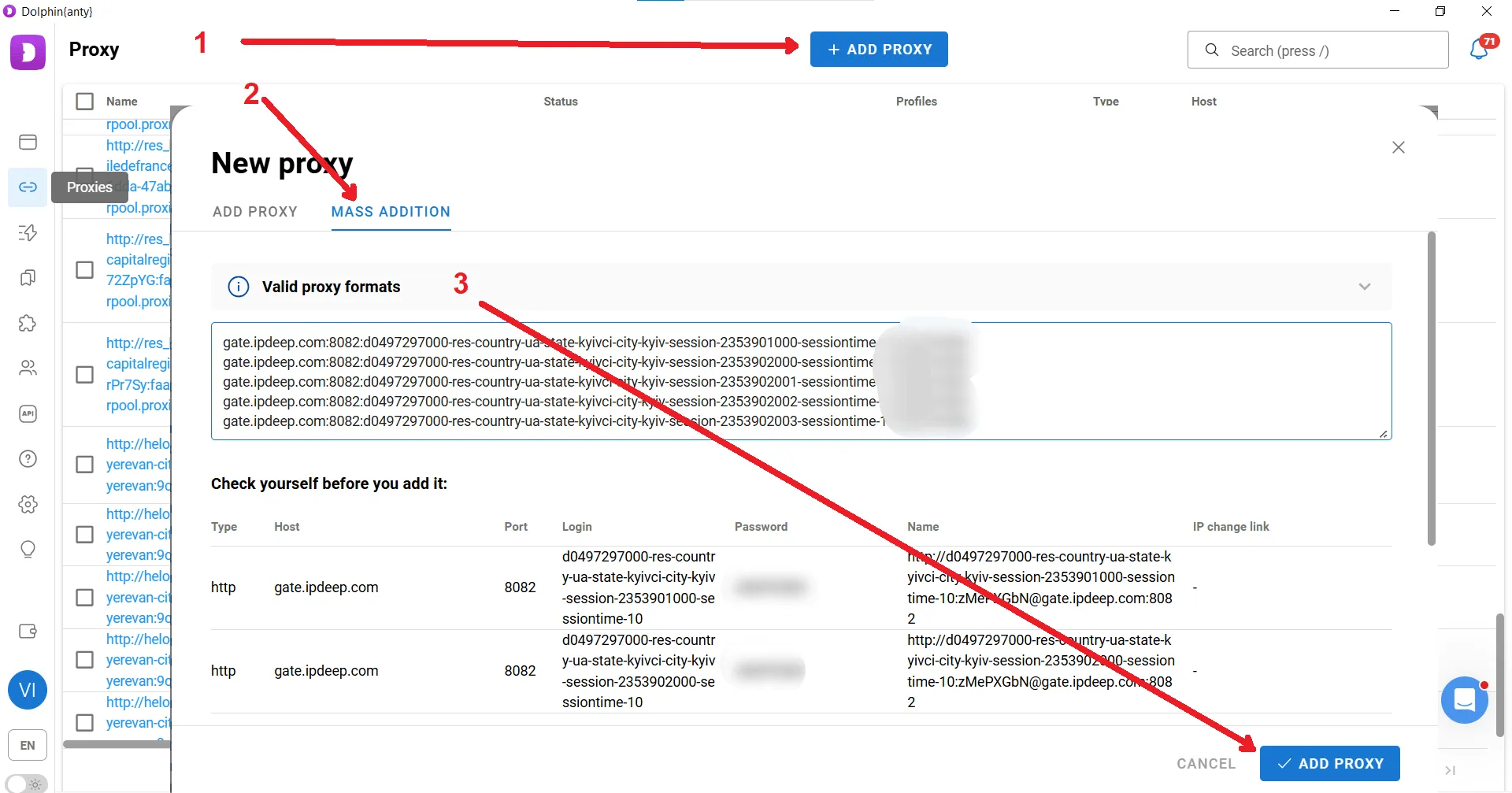
Once imported, all proxies will appear in the list. Select the proxies you want to test using the checkboxes, then click Check in the action panel that appears to verify their connections.
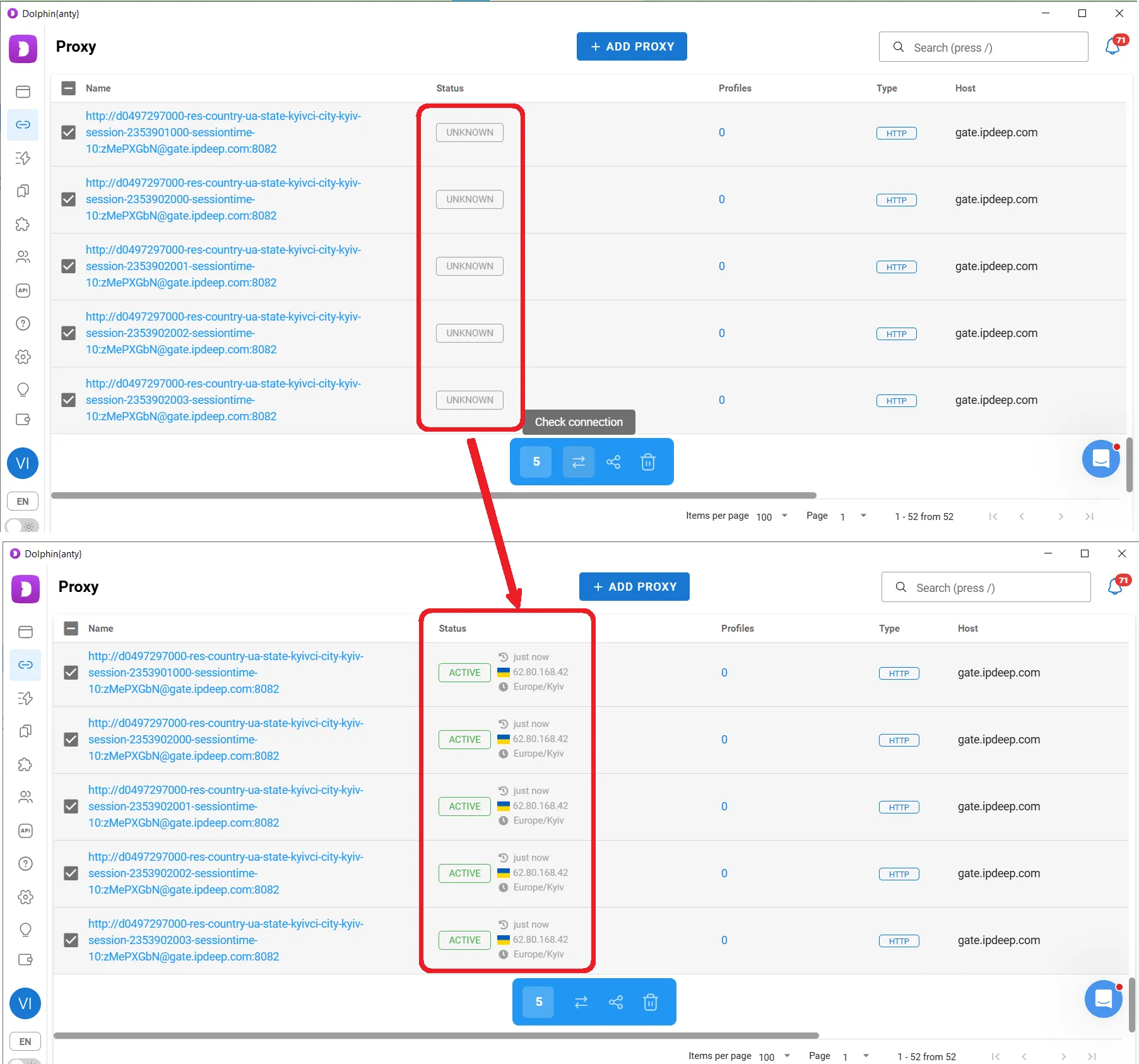
How to Create Multiple Profiles and Assign Proxies
Once your proxies have been added to the Proxies section, you can assign them to the same number of browser profiles in just a few steps.
Creating profiles in bulk is slightly different from creating them individually. First, create a blank profile without adding a proxy or cookies. For this tutorial, we'll name the profile IPDEEP.
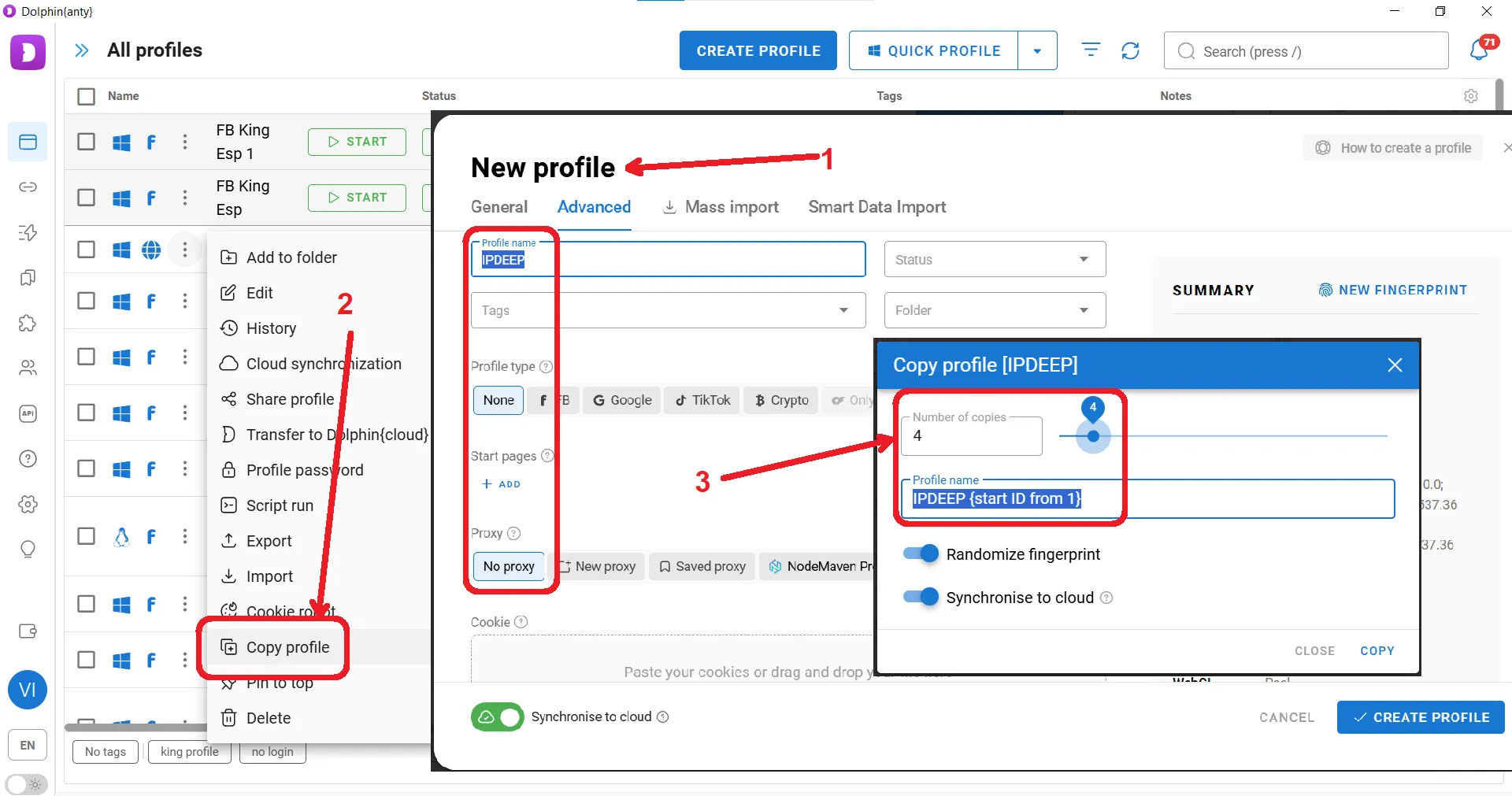
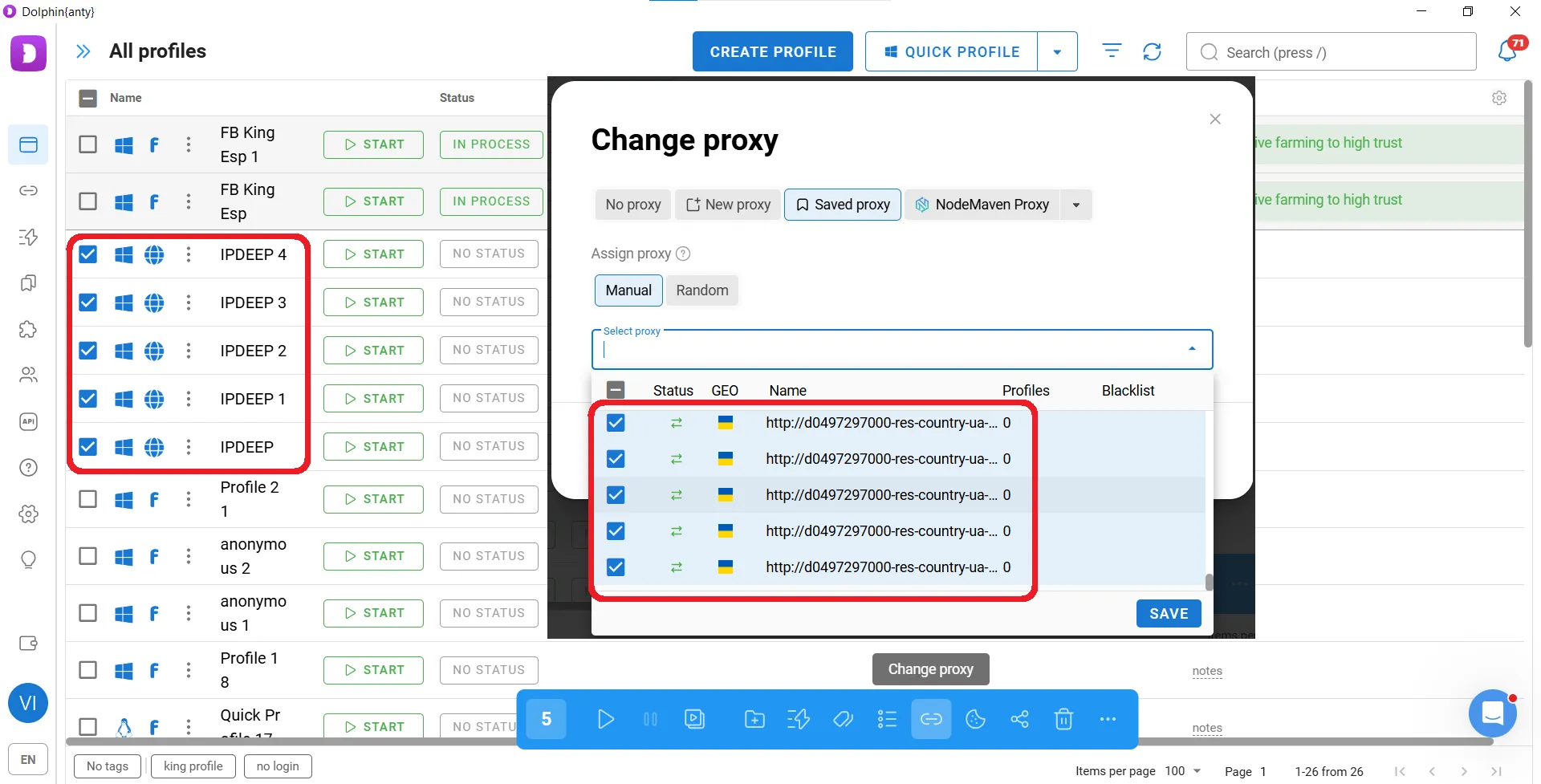
Once the profiles are created, select the ones you want to configure using the checkboxes. In the action panel that appears, click Change Proxy. In the new window, open the tab containing your saved proxy ports and select the ones you want to assign.
Click Save, then distribute the proxies among the selected profiles. Each profile will be assigned its own proxy port.
You now have five browser profiles, each with its own proxy connection.
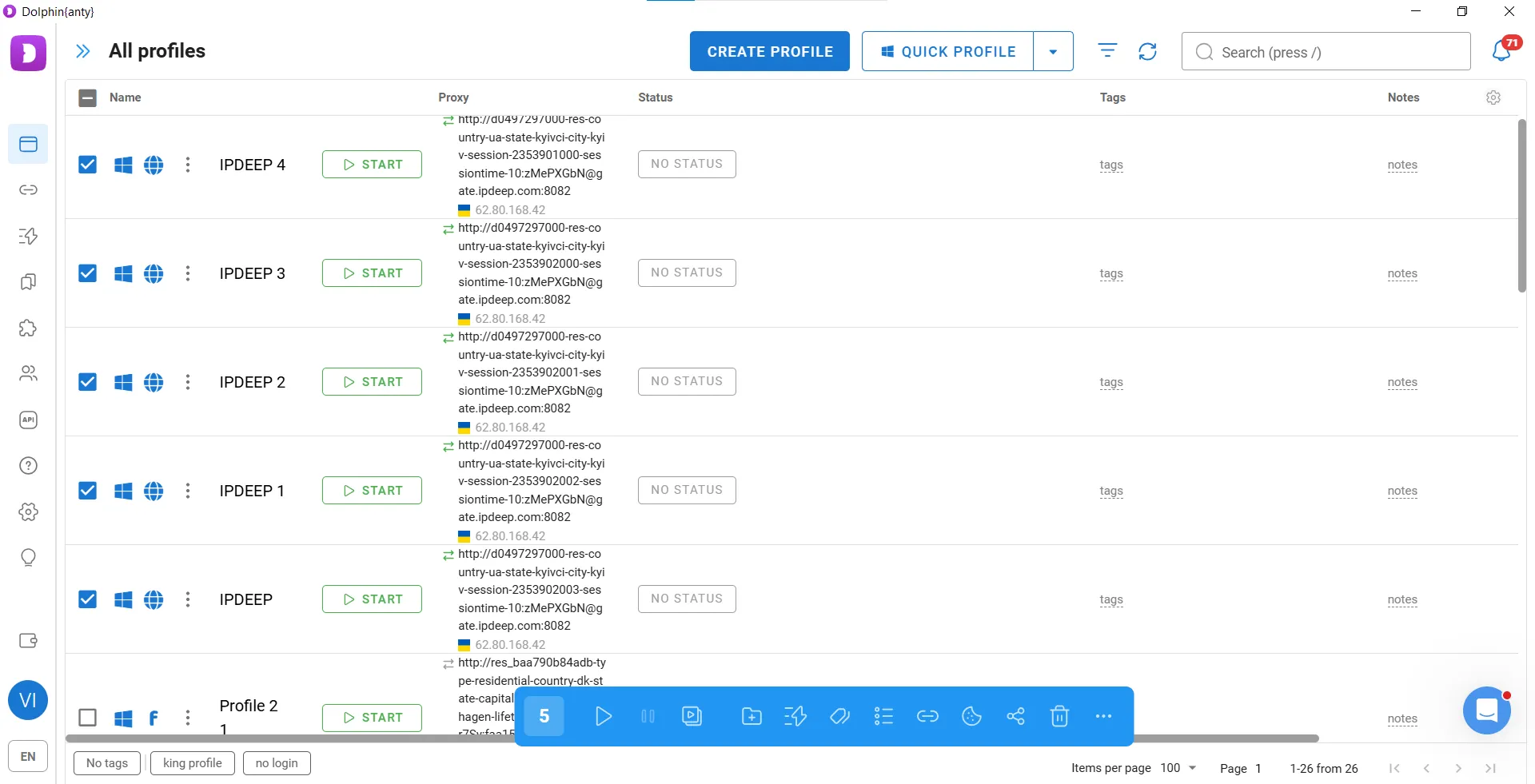
You can use the same method to quickly create not just five profiles, but 50, 500, or even more.
Frequently Asked Questions
Q1: How many browser profiles can I create with the free version of Dolphin Anty?
The free version supports up to five browser profiles. If you need more, you can subscribe to a paid plan and use the promo code IPDEEP20 to get a discount.
Q2: Why does the proxy connection test keep failing in my browser profile?
First, check that all proxy details have been entered correctly. The host, port, username, and password must all be provided, and the selected protocol must match your proxy plan. Also, make sure your proxy IP has not expired and that you still have available traffic.
Q3: Can I assign the same proxy IP to multiple browser profiles?
Yes, but for multi-account management, we recommend using one IP per account. Assigning a separate proxy exit to each profile helps reduce the risk of accounts being linked through a shared network connection.
Q4: What are the risks of manually changing browser fingerprint settings?
If the modified parameters don't match the actual device environment, the resulting fingerprint may appear inconsistent. If you're unfamiliar with browser fingerprinting, it's best to keep the automatically generated settings.
Q5: Which proxy protocols does IPDEEP support?
IPDEEP supports HTTP, HTTPS, and SOCKS5. Choose the protocol that matches your requirements when extracting proxy IPs. This tutorial uses SOCKS5.
Conclusion
Dolphin Anty creates and isolates browser environments, while IPDEEP provides each environment with a separate network connection. Together, they support multi-account management and make it easier to scale workflows across dozens or even hundreds of browser profiles.
Dolphin Anty offers a free version with support for up to five browser profiles. If you need access to the full feature set, you can choose a paid plan. Enter promo code IPDEEP20 at checkout to get a discount.