




How to Use yt-dlp: Complete Video & Audio Download Guide



Clean IP picks: Static IPs from $1.5 each, Dynamic IPs from $0.5/GB


In today's media-rich world, many users wish to save their favorite videos or audio offline for learning, research, or personal archiving purposes.
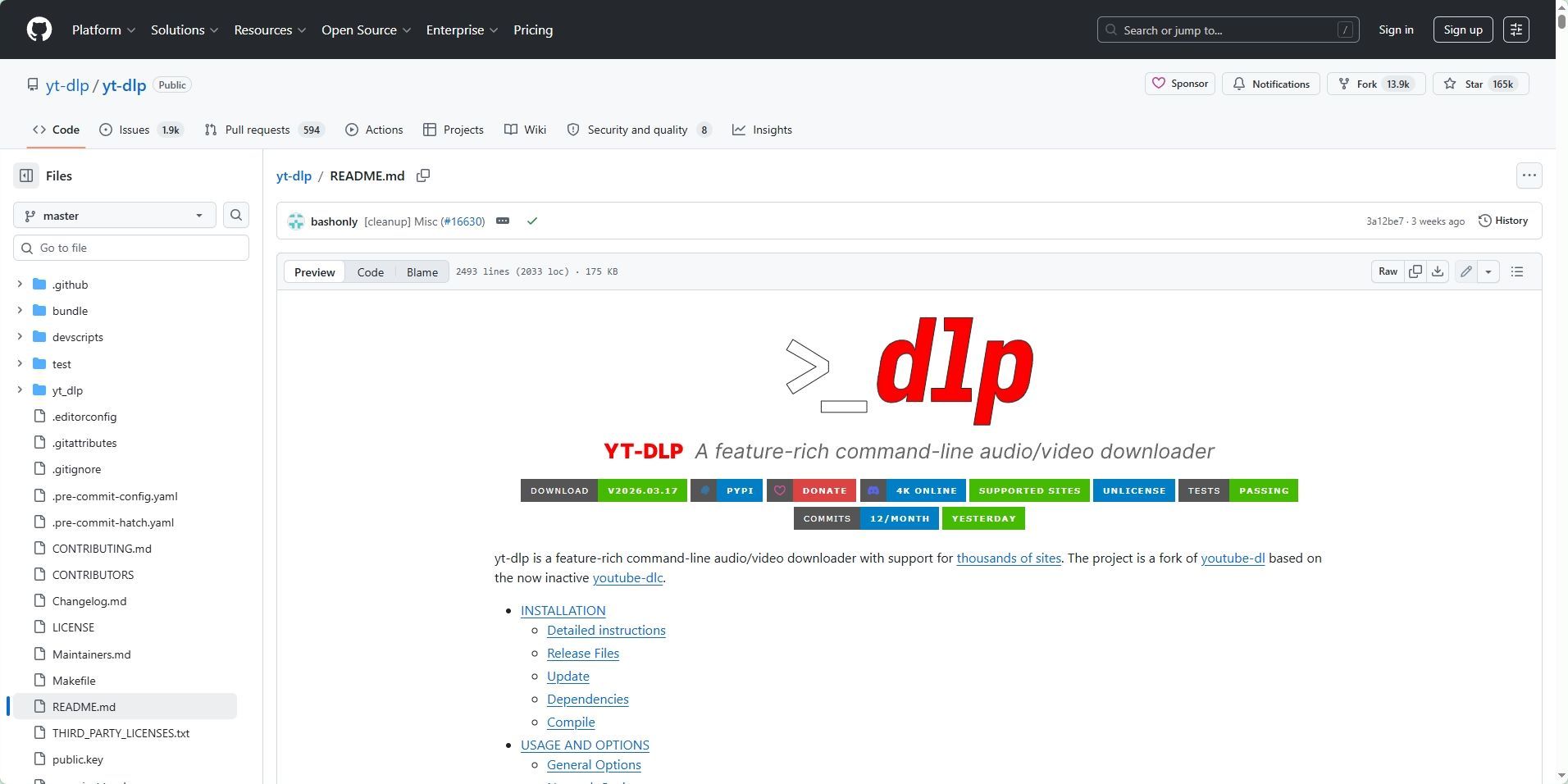
yt-dlp is a powerful and actively updated open-source command-line tool. As a fork of the well-known youtube-dl project, it supports downloading audio and video resources from thousands of websites globally.
This guide will take you from the basic configuration to gradually mastering this download tool.
Prerequisites: Installation Environment and Dependencies
The core of yt-dlp is a command-line program.
Thanks to modern packaging technologies, you can install it directly with a single command line on mainstream operating systems, without the need to manually configure tedious Python environments.
1. Installing yt-dlp
Windows: Open PowerShell and run winget install yt-dlp.
macOS: Open the Terminal and run brew install yt-dlp.
Linux (Ubuntu/Debian):
Since the system's built-in apt repository updates are significantly lagged, installing directly via apt will result in an outdated tool version that cannot download the latest videos in 2026.
It is recommended to use the official latest binary package or an independent package manager for installation:
Run command:
sudo wget https://github.com/yt-dlp/yt-dlp/releases/latest/download/yt-dlp -O /usr/local/bin/yt-dlp && sudo chmod a+rx /usr/local/bin/yt-dlp
2. Installing FFmpeg
Although yt-dlp can download videos directly, to merge high-quality video streams with audio streams, or to perform format conversions (such as converting to MP3), FFmpeg must be installed.
Windows Users: It is recommended to download it and add its bin folder path to the system's environment variable PATH.
Linux Users: You can run sudo apt install ffmpeg.
Basic Usage: Quick Video and Audio Downloads
Once the installation is complete, open your terminal (CMD or PowerShell under Windows) to start using it.
1. Download the Highest Quality Video
By default, simply enter yt-dlp followed by the video URL, and it will automatically merge the best quality video and audio for you: yt-dlp "URL"
2. Extract High-Quality Audio Only
If you only need the audio (such as podcasts or music), you can use the -x parameter.
Extract default audio: yt-dlp -x "URL".
Convert to MP3 format: yt-dlp -x --audio-format mp3 "URL".
Specify audio quality: Use --audio-quality 0 to get the highest variable bitrate (VBR) quality.
3. View Available Formats
If you want to manually select a specific resolution or encoding, you can use the -F directive to list all optional formats: yt-dlp -F "URL". After finding the corresponding ID in the output list, use -f along with the ID to download.
Advanced Features: Batch Processing and Restriction Bypassing
1. Download a Complete Playlist
yt-dlp supports downloading entire playlists by default. To ensure you are downloading the playlist rather than a single video, add the parameter:
yt-dlp --yes-playlist "PLAYLIST_URL".
2. Embed Thumbnails and Metadata
To make your downloaded files look more like an official album, you can write the video cover and title information directly into the file:
yt-dlp -x --audio-format mp3 --embed-thumbnail --add-metadata "URL"
Advanced Techniques: Optimizing Cross-Regional Access and Batch Task Management
In practical usage, users often encounter IP blocking or video regional restriction issues.
Regional Access Variance: Some content might be inaccessible due to different regional network policies. In such cases, you can configure network proxies through the --proxy parameter.
Large-Scale Batch Tasks: If you need to download a massive volume of resources, it is recommended to use dynamic proxies, which significantly help in improving connection success rates and downloading stability.
Frequently Asked Questions (FAQ)
Q1: What should I do if I get the "FFmpeg not found" error after running it?
Please ensure that FFmpeg is installed.
On Windows, you need to add the path of the FFmpeg executable file to the system's PATH environment variable, or place ffmpeg.exe directly in the same folder as yt-dlp.exe.
Q2: Why is the downloaded audio in .opus or .webm format?
These are the raw audio stream formats used by certain platforms. To obtain .mp3 or .m4a, you must use the -x --audio-format mp3 directive in conjunction with FFmpeg for automatic conversion.
Q3: How to solve the "403 Forbidden" access denial error?
This usually means that your tool version is outdated, or your current IP has triggered restriction thresholds.
You can try running yt-dlp -u (or --update) to upgrade the program.
If the error persists after upgrading, it indicates that the IP has been flagged by risk controls. It is recommended to obtain a new residential proxy IP to switch your network environment.
Q4: Can I customize the filename after downloading?
Yes, you can. Use the -o parameter to set the output template. For example, yt-dlp -o "%(title)s.%(ext)s" "URL" will name the file based on the video title.
For more technical support on how to optimize network connections and obtain highly anonymous proxies, please visit the IPDeep Official Website.
⚠️ Compliance Reminder:
The yt-dlp tool and network optimization techniques covered in this guide are intended solely for personal learning, academic research, data analysis, and legitimate content archiving.Users must strictly comply with local laws and regulations, and respect the intellectual property rights of creators as well as the Terms of Service (ToS) of the respective platforms prior to downloading.