





How to Set Telegram to Chinese: Latest 2026 Guide



Clean IP picks: Static IPs from $1.5 each, Dynamic IPs from $0.5/GB


Telegram (commonly known as Telegram or Paper Plane) has become one of the most popular instant messaging tools worldwide, thanks to its exceptional privacy security, cross-platform synchronization, and powerful group features.
However, for many Chinese-speaking users who are new to this software, its default English interface often poses a significant barrier.
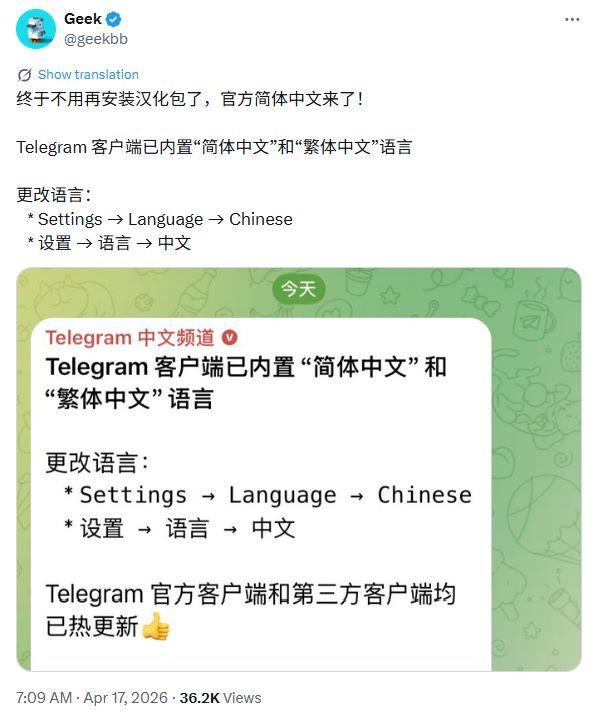
According to the latest updates, Telegram officially rolled out its native mobile Chinese language support in April 2026.
This article will provide you with a detailed guide on the latest Chinese setting methods for 2026, covering both mobile devices (iOS/Android) and desktop platforms (Windows/Mac).
Mobile Devices: Official Chinese Language Pack Released (2026 Latest Trend)
According to the latest industry dynamics, Telegram has started offering official Simplified and Traditional Chinese language packs directly within its iOS and Android versions.
Users no longer need to rely entirely on third-party localization tools as they did in the past, making the process much more convenient.
1. Direct Switching (For users who have updated to the latest version)
Step 1: Open the Telegram mobile app and tap Settings at the bottom right corner of the main interface.
Step 2: Locate the Language option within the settings menu.
Step 3: Select Simplified Chinese (简体中文) or Traditional Chinese (繁体中文) from the language list to complete the switch.
⚠️ Note: Some users have reported that the official translation feels a bit rigid initially. If the interface still displays in English after switching, it is recommended to restart the app or toggle the setting again.
2. Link Importation (The Traditional Method)
If you cannot find Chinese in the official list, or if you prefer community-maintained translation versions, you can quickly import them via the following links:
Telegram Chinese Language Packs Share
Simplified Chinese (Congcong): https://t.me/setlanguage/zhcncc
Simplified Chinese (@zh_CN Version): https://t.me/setlanguage/classic-zh-cn
Traditional Chinese (Hong Kong): https://t.me/setlanguage/zh-hant-raw
Traditional Chinese (Taiwan): https://t.me/setlanguage/zh-hant-beta
How to apply: Send any of the links above to your "Saved Messages" in Telegram and tap it. Then, select "Change" in the pop-up window to apply.
Desktop Platform: Chinese Settings for Windows and Mac
As of May 2026, the official desktop version of Telegram has not yet integrated the native Chinese language pack. Therefore, desktop users are currently still advised to use the link importation method.
Step 1: Open the Chinese language pack link inside your browser or directly within the Telegram app.
Step 2: The browser will display a prompt saying "Open Telegram Desktop"; click allow to proceed.
Step 3: In the confirmation window that pops up within the Telegram application, click Apply Language.
Why is the Setting Unsuccessful? Common Troubleshooting
If you encounter issues where tapping the link does not trigger any response or fails to connect during setup, it is usually caused by the following factors:
Network Environment Restrictions: Telegram's domain or language pack links might be blocked by regional network firewalls.
Non-Official Clients: Certain modified or third-party clients may fail to recognize the official language pack protocols properly.
System Permission Issues: Privacy configurations on iOS or Android systems can sometimes restrict external browsers from automatically redirecting to the app.
Expert Advice: To ensure Telegram connects smoothly and operates without interruptions, utilizing a high-quality proxy IP is essential.
IPDEEP provides highly anonymous, low-latency global proxy IP services. It effectively resolves geo-restrictions and IP blocking issues in cross-border access, ensuring a stable and secure Telegram experience.
Frequently Asked Questions (FAQ)
Q1: Is it safe to use third-party Chinese language packs?
Language packs are essentially user interface translation files. As long as they come from reliable sources (such as the well-known community links recommended in this article), they generally do not involve any account data security risks.
Q2: Do I need to reconfigure the settings after switching to Chinese?
Generally, no. You will only need to re-import it if you switch to a brand new device, reinstall the software, or if the system resets language preferences during a major official update.
Q3: Why does the official Chinese translation look a bit strange?
The official Chinese language pack is currently in an optimization phase. Some vocabulary terms may seem rigid, but they will gradually improve with subsequent version updates.
Q4: How can I manage multiple Telegram accounts simultaneously?
The official client supports adding multiple accounts native to the application.
However, if you have broader account management and anti-association requirements, it is recommended to pair your operations with an anti-detect browser and obtain independent proxy IPs from IPDeep.
This creates multi-environment isolation to prevent account linkage and lower the risk of account bans.
By following the methods detailed above, you can easily localize your Telegram interface to Chinese and boost your communication efficiency.
While enjoying seamless communication, always remember to maintain excellent account security habits and ensure your network environment remains reliable.