





No Internet After Setting Up a Static Residential Proxy?



Clean IP picks: Static IPs from $1.5 each, Dynamic IPs from $0.5/GB


Using a static residential proxy IP provides a relatively stable, fixed IP environment, making it suitable for use cases that require a consistent network exit point over time.
However, after setting up a proxy, some users may find that web pages won't load, connections are interrupted, or their client shows no internet connection.
When a proxy IP suddenly stops working, the IP itself is often not the problem. Common causes include incorrect settings, protocol mismatches, DNS resolution issues, or conflicts with the local network.
Let's start with a simple way to identify the problem, then go through the common causes and solutions step by step.
First: Is the Proxy Down or Is the Configuration Wrong?
When you lose internet access, check in this order instead of repeatedly trying to reconnect:
Turn off the proxy → Is your local network working normally?
No → Check your router, broadband connection, gateway, and other local network settings.
The problem may be unrelated to the proxy.
If you are in mainland China, a normal local network connection does not necessarily mean you can connect directly to an overseas proxy node, so failing to connect after disabling the proxy does not by itself indicate a local network problem.
Yes → The problem is more likely related to the proxy configuration, proxy node, or connection path. Continue troubleshooting below.
Proxy connects successfully, but web pages won't load? Check DNS and remote DNS resolution first.
Only one website won't open? Check whether the target website is restricting the IP or whether the proxy node is working properly.
No software can access the internet? Check the system proxy, firewall, and network protocol settings.
5 Common Reasons for No Internet After Proxy Setup
1. Incorrect Proxy Address, Port, Protocol, or Authentication
This is one of the most common causes. Proxy details typically include the address, port, protocol, username, and password:
Incorrect address or port: Extra spaces, punctuation, or incorrect characters can cause the connection to be rejected.
Protocol mismatch: If the provider offers SOCKS5 but the client is set to HTTP, the handshake will fail. Some games and scraping tools also require SOCKS5.
Missing or incorrect authentication: If the username or password is missing or contains a typo, the proxy server may reject the request.
2. DNS or Remote DNS Configuration Issues
If the proxy connection is established but domain lookups still use the local DNS, problems with the DNS resolution path may prevent web pages from loading.
You may find that some applications connect normally while your browser cannot open websites because different applications handle DNS resolution differently.
3. Firewall, Security Software, or System Proxy Conflicts
Your local firewall or antivirus software may block the proxy application's outbound connections if they are flagged as unusual. Some corporate networks also allow only standard ports and may block custom proxy ports.
Running multiple proxy tools, browser extensions, or fingerprint browsers at the same time can also cause proxy settings to overwrite each other. Frequent network configuration changes may leave outdated system proxy settings behind and cause connection issues.
4. Local Network or TCP/IP Configuration Issues
Router problems, unpaid broadband bills, or incorrect gateway settings can prevent data packets from being sent. Frequently switching between proxies can also leave issues in the Windows Winsock directory or TCP/IP stack that may require a reset.
5. Proxy Node Failure, Expiration, or Website Restrictions
Static residential IPs have usage periods and authorization limits. An expired plan, temporary node maintenance, or restrictions placed on the IP by a specific website can all prevent access to the internet.
Step-by-Step Troubleshooting Guide
Step 1: Test Your Local Network
Temporarily turn off the proxy software or disable the proxy settings to confirm that your local network is working normally.
You can first visit websites that you normally access directly or check other network services that do not rely on a proxy.
If your local network itself is not working properly, check your network cable, router, or contact your internet service provider. If the local network works normally but you cannot connect to an overseas proxy node after re-enabling the proxy, check the proxy configuration, node status, and connection path.
Step 2: Check the Proxy Details and Use Copy and Paste
Open your provider's dashboard and compare the IP, port, username, and password. Copy the original credentials directly from the dashboard to reduce typing errors.
Make sure the protocol selected in the client (HTTP/HTTPS/SOCKS5) matches the one provided by the proxy service.
Step 3: Enable Remote DNS Resolution
First, enable “Remote DNS” in your proxy client or fingerprint browser so that DNS requests and web traffic use the same proxy connection.
If the client does not support remote DNS, choose a reliable DNS service based on your local network environment.
Step 4: Check Firewall Rules and Open Ports
Temporarily disable your local firewall or security software for testing. If the connection works afterward, add the proxy software or browser to the firewall's allowlist.
Step 5: Reset Network Configuration
If frequent proxy switching has caused network problems, open Command Prompt as an administrator and run the following commands in order (following Microsoft's official troubleshooting sequence):
netsh winsock reset
netsh int ip reset
netsh winhttp reset proxy
ipconfig /release
ipconfig /renew
ipconfig /flushdns
Restart your computer after running the commands. The netsh winhttp reset proxy command resets the Windows system-level proxy settings to direct connection, which is useful if network problems started after changing system proxy settings.
How to Choose a Stable Static Residential IP
If the configuration is correct but the proxy node frequently fails to connect, the proxy service itself may be the issue. When choosing a provider, consider:
Genuine ISP attributes: Check whether the IP's ASN, ISP, and location match your needs, and use an IP detection tool to verify the network type and IP attributes.
Dedicated IP: Avoid shared IPs or subnets that may cause association issues or affect connection speeds.
Service availability: Look at node uptime, connection stability, and latency.
Bandwidth and protocols: Make sure the bandwidth specifications and supported protocols meet your needs.
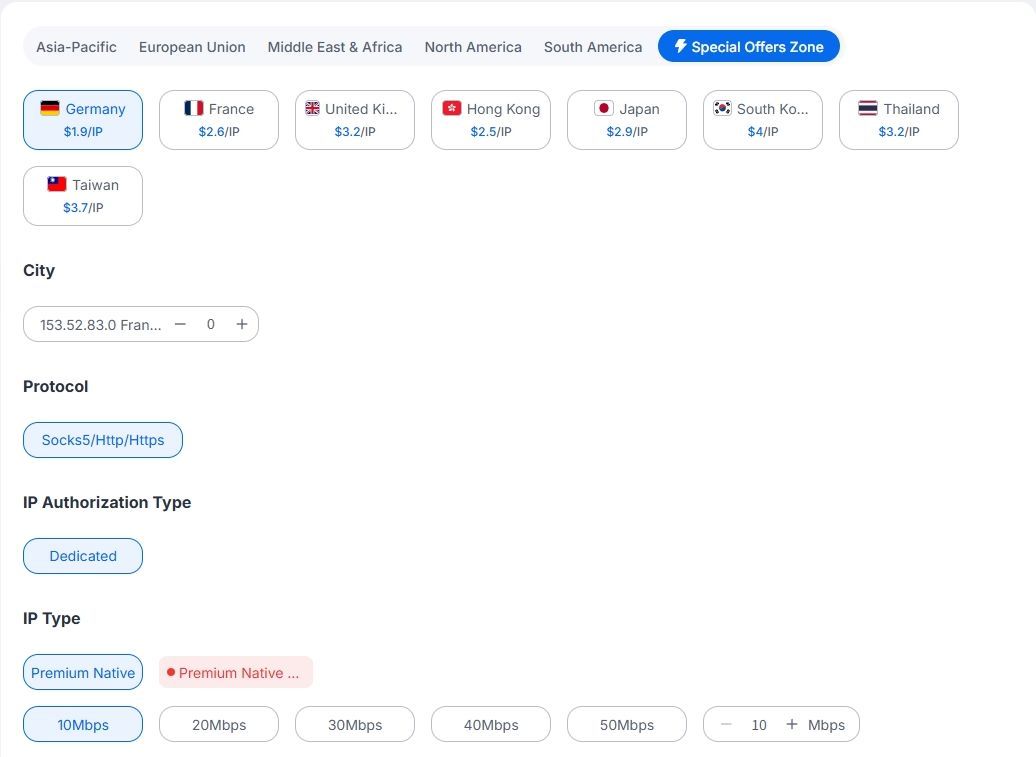
IPDeep covers multiple countries and regions, offering dedicated static residential IPs with different bandwidth options for use cases that require a consistent network exit point.
Before purchasing, you can also use an IP detection tool to check the ASN, ISP, location, and network type. For current node availability and pricing, visit the IPDeep website.
Frequently Asked Questions
Q1: Why does ping time out after setting up a proxy?
This can be normal. For security reasons, many proxy nodes do not respond to ICMP requests (the protocol used by ping), but this does not prevent HTTP, HTTPS, or SOCKS5 proxy traffic from working.
To check whether a proxy is working, test an actual connection in your browser.
Q2: Why can I log in to chat apps through the proxy but not open web pages?
DNS resolution is often the cause. Some applications handle DNS differently from browsers, while browsers rely on DNS to resolve domain names to IP addresses when loading websites.
Check that a valid DNS is configured, or enable remote DNS resolution in your proxy software.
Q3: What is the difference between static and dynamic residential proxies?
The main difference is how long the IP remains fixed and how each proxy type is used.
Static residential proxies provide long-term fixed IPs and are suitable for account management, store management, API allowlisting, and other use cases that require a consistent exit IP.
Dynamic residential proxies periodically or per request change IPs, making them more suitable for data collection, price monitoring, and similar use cases.
Q4: What if the configuration is correct but the connection keeps timing out?
First, check the connection between your local network and the proxy node. Then log in to your provider's dashboard to check the node status, or contact technical support to troubleshoot the connection.
Summary: When a static residential proxy leaves you without internet access, common causes include incorrect credentials, protocol mismatches, DNS resolution issues, or firewall blocks.
Follow a “check first, troubleshoot second” approach to verify the settings and reset the network configuration when needed.