






How to Set Up WiFi Proxy on Android Phones? (Step-by-Step Guide)
 Daniel Wong
 2026-01-29 10:24
 Other
OtherWhen using an Android phone for daily internet access, there are times when you may need to connect through a proxy server — for example, to protect your privacy, bypass regional restrictions, or improve connection stability. This guide explains in detail how to set up a proxy on an Android phone. Whether you are connected via Wi-Fi or mobile data, you’ll be able to complete the configuration quickly and easily.
What Is a Proxy?
A proxy (Proxy Server) acts as an intermediary between your device and the internet. Your network requests are first sent to the proxy server, which then accesses the target website on your behalf. This process helps hide your real IP address, enables anonymous browsing, and allows you to bypass geographic restrictions.
Preparation Before Setting Up a Proxy on Android
Before configuring a proxy, make sure you have the following information:
• Proxy server address (IP or domain name)
• Proxy port number
• Proxy username and password (if required)
Setting Up a Proxy on a Wi-Fi Network
In most cases, Android proxy settings are configured within the Wi-Fi network settings. Follow the steps below:
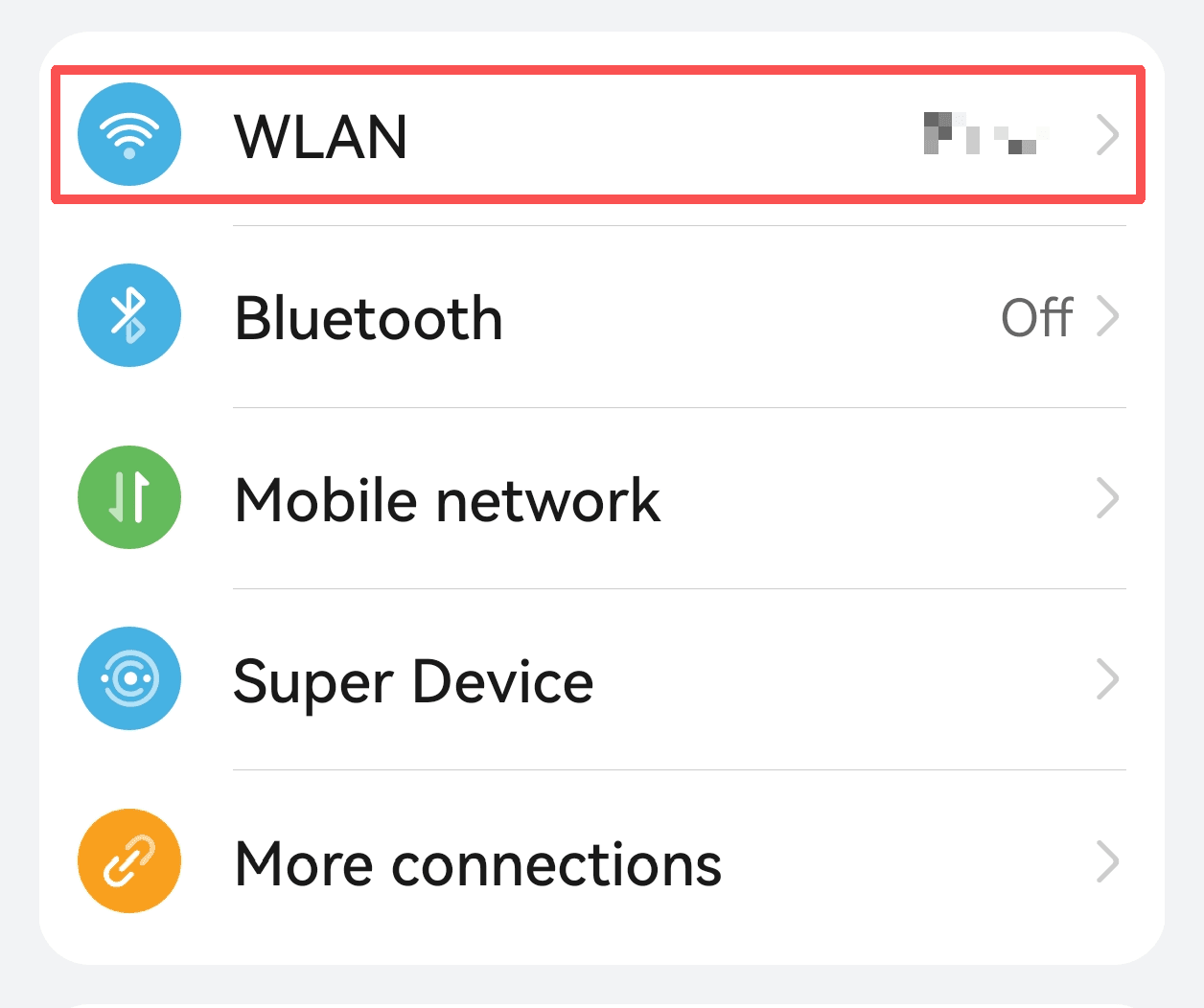
1. Open Settings and go to Wi-Fi
Open the “Settings” app, tap “Network & Internet” or “Wi-Fi/WLAN” and locate the Wi-Fi network you are currently connected to.
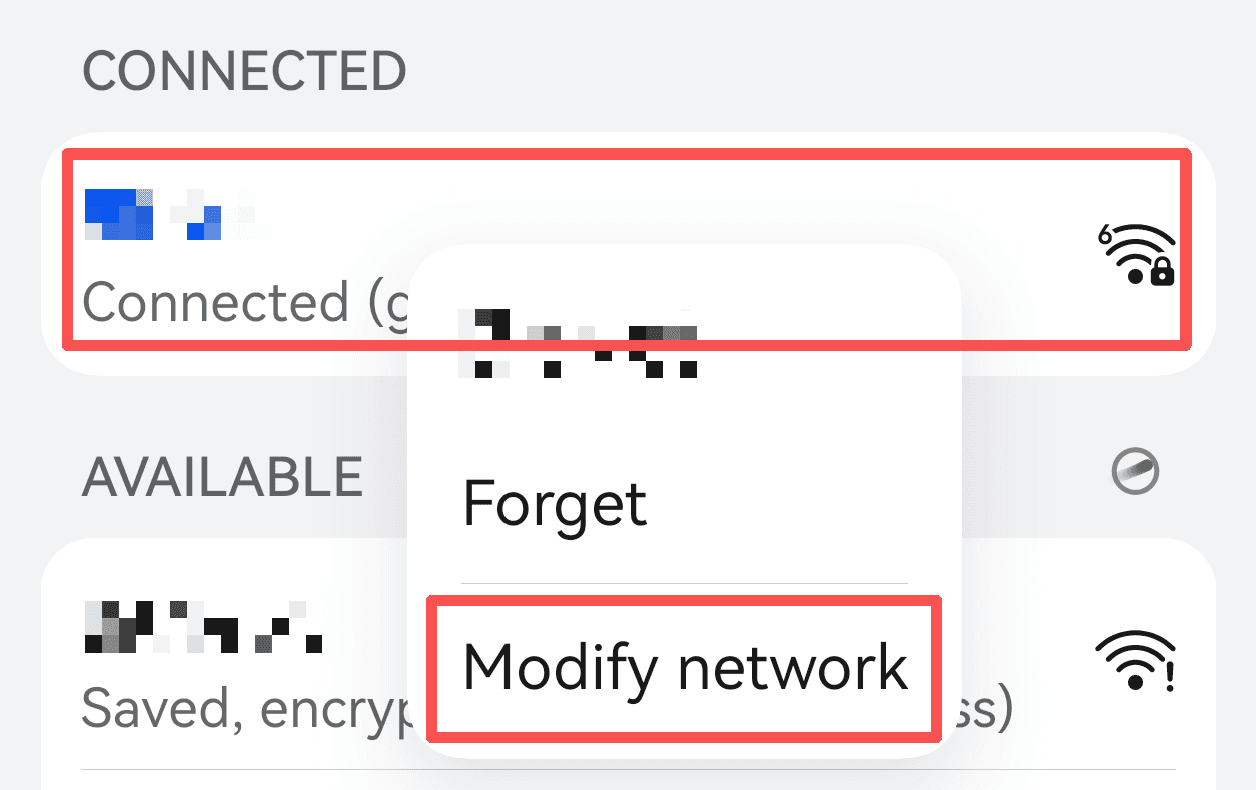
2. Long-press the connected Wi-Fi network and select “Modify network”
In the Wi-Fi list, long-press the connected network name, then select “Modify network” from the menu.
3. Expand Advanced options
In the settings panel, find or expand “Advanced options.”
4. Set Proxy to “Manual”
Locate the “Proxy” option (default is usually “None”) and change it to “Manual.”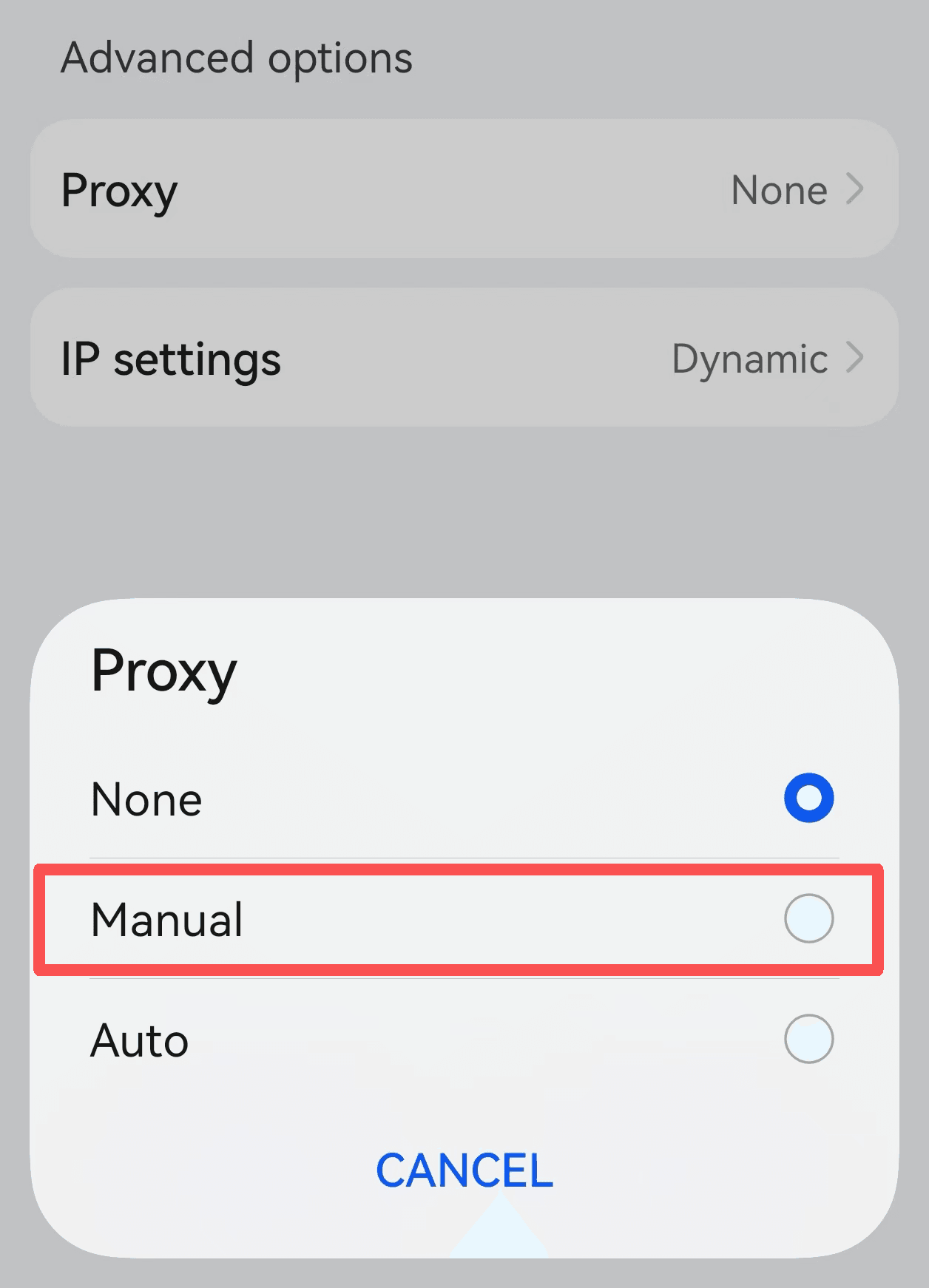
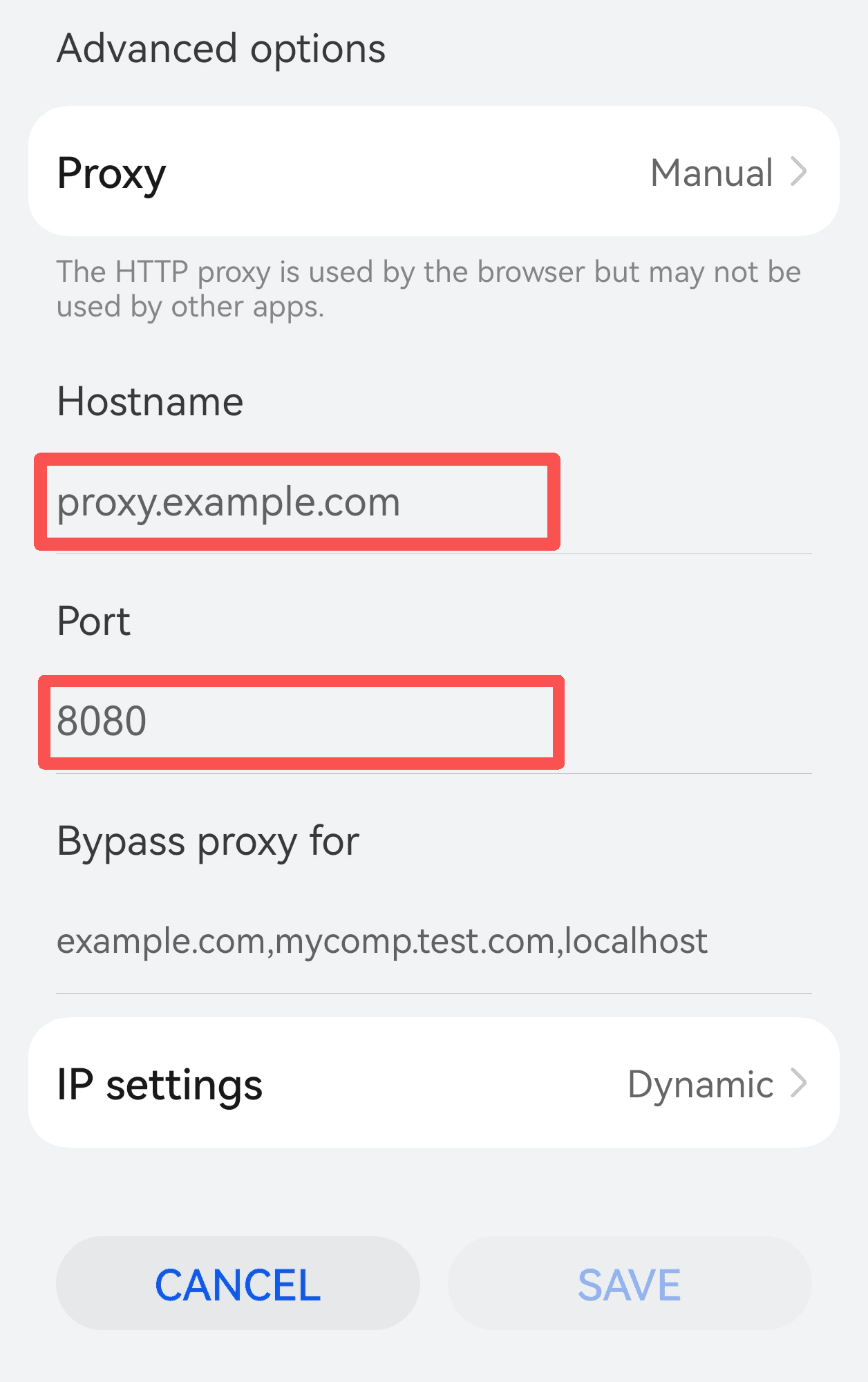
5. Enter the proxy server address and port
Enter the proxy server IP address or domain name in the “Hostname” field, and enter the port number in the “Port” field.
6. Save the settings and reconnect to Wi-Fi
After confirming the information is correct, tap “Save,” disconnect from Wi-Fi, and reconnect for the proxy to take effect.
Check your IP address to confirm whether it has changed.
Setting Up a Proxy via Mobile Data
1. Open Settings and go to Mobile Network
Open the “Settings” app and tap “Mobile Network.”
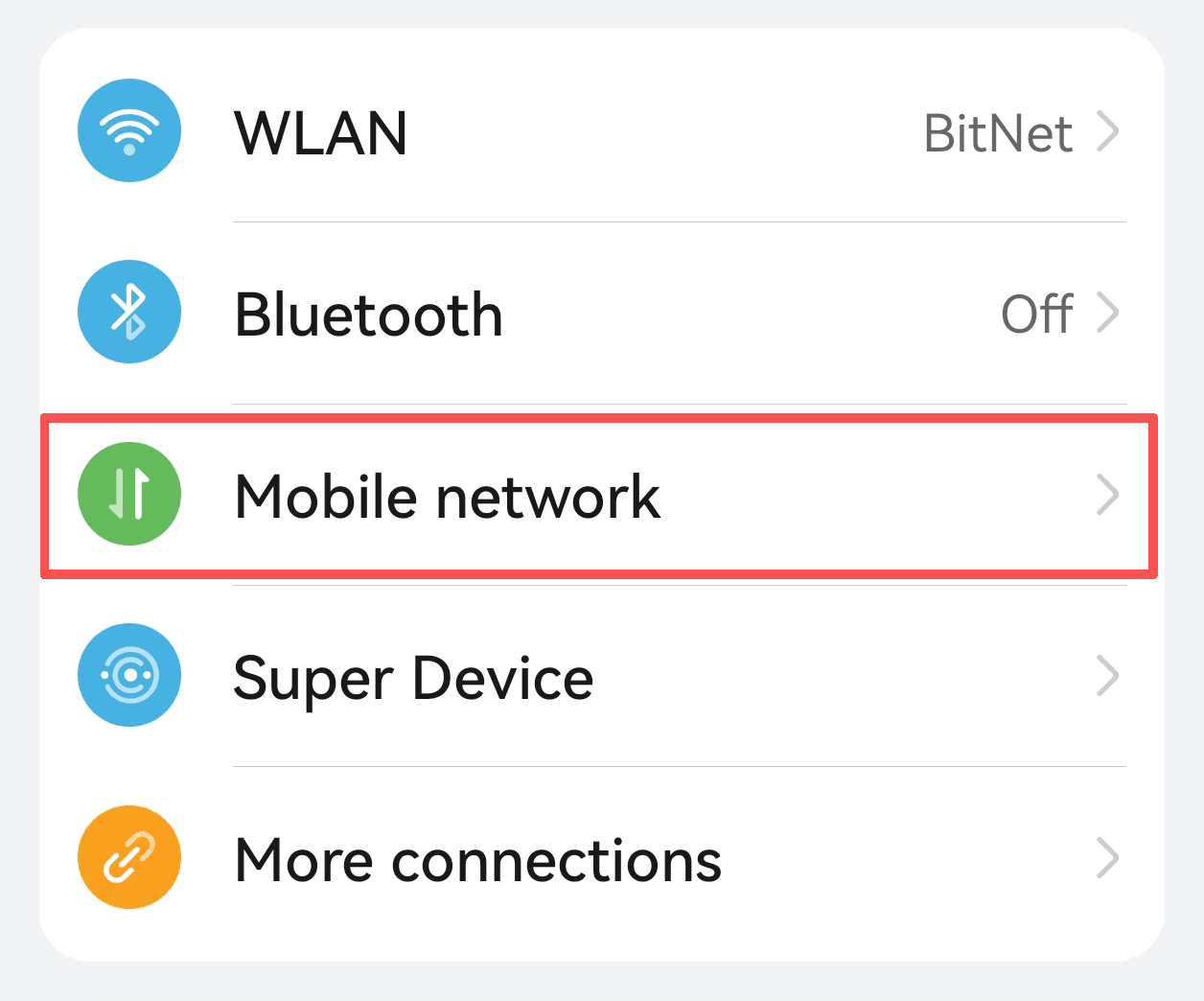
2. Tap Mobile Data
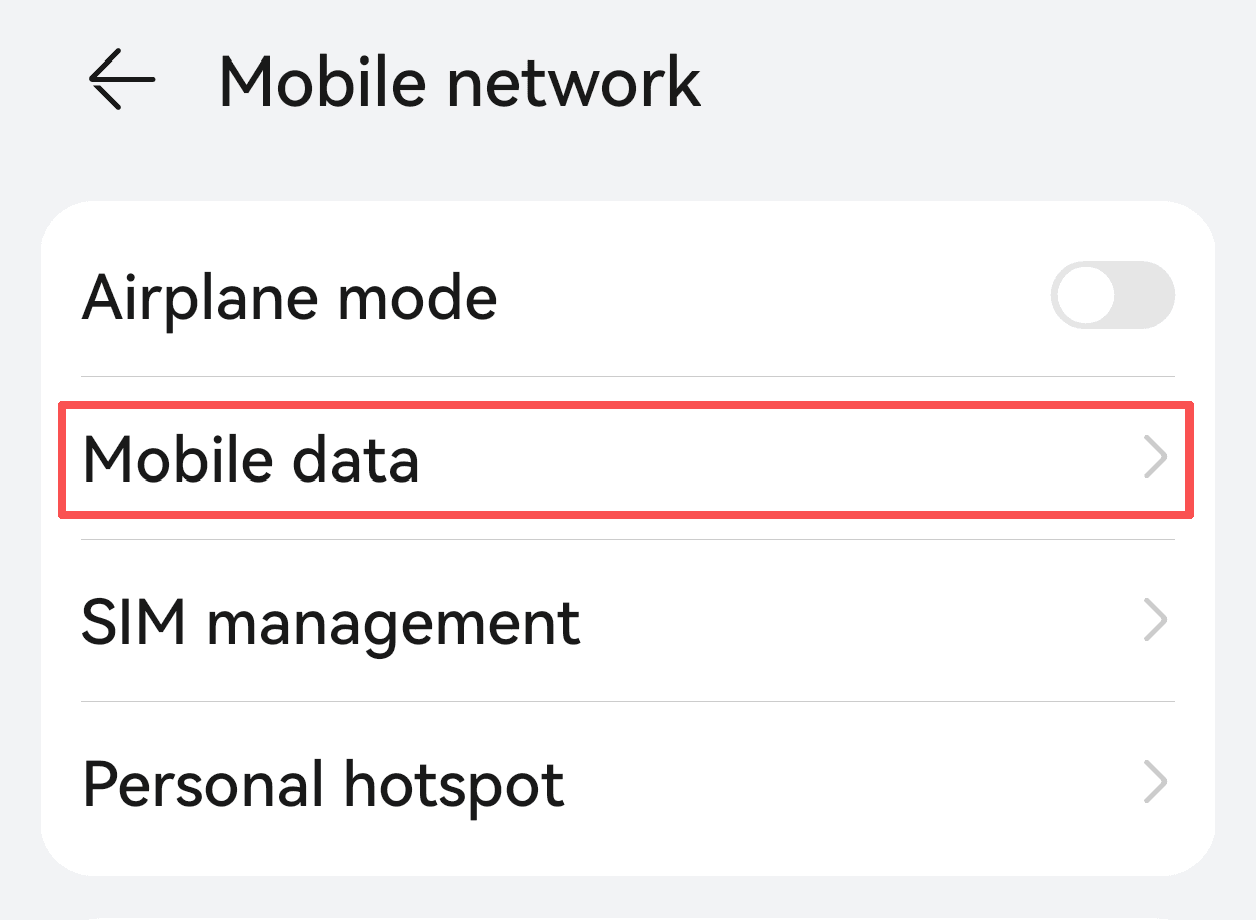
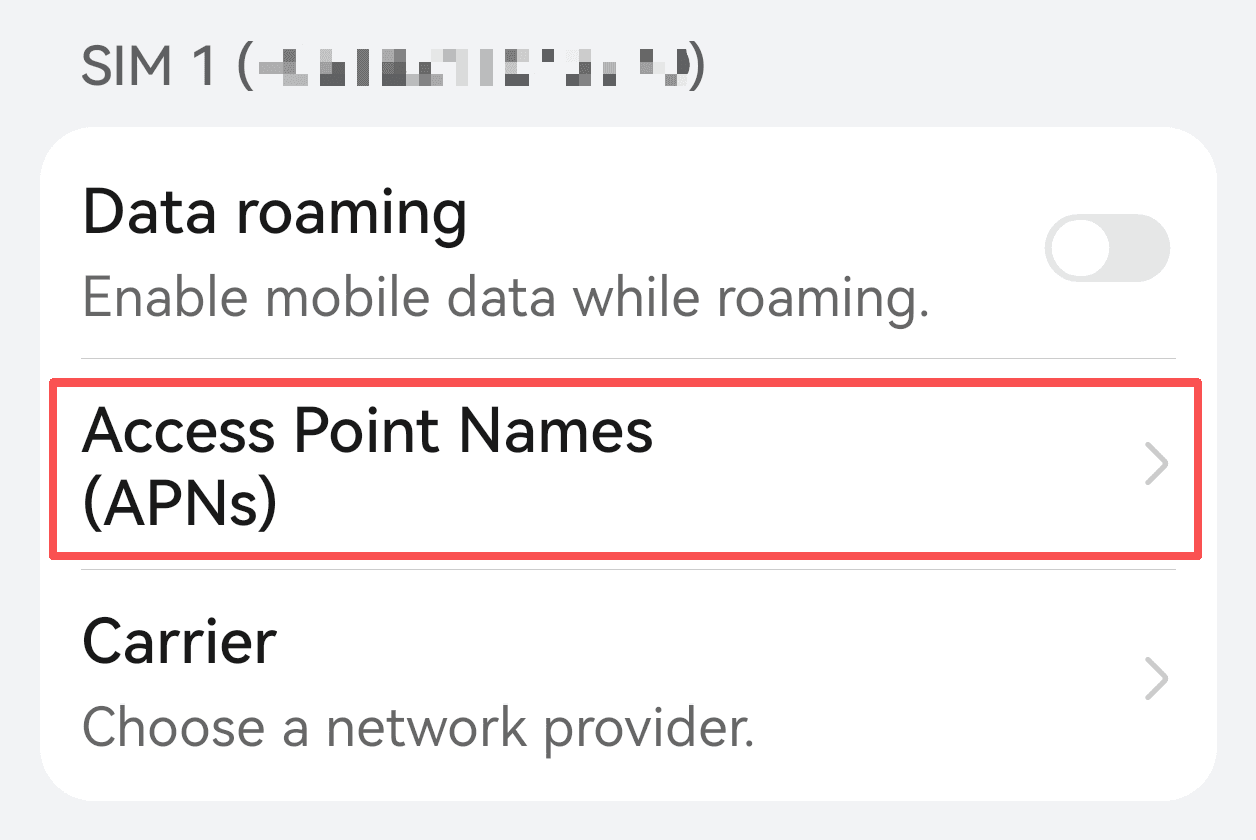
3. Enter Access Point Names (APNs) settings
Find the SIM card you are using and tap “Access Point Names (APNs).”
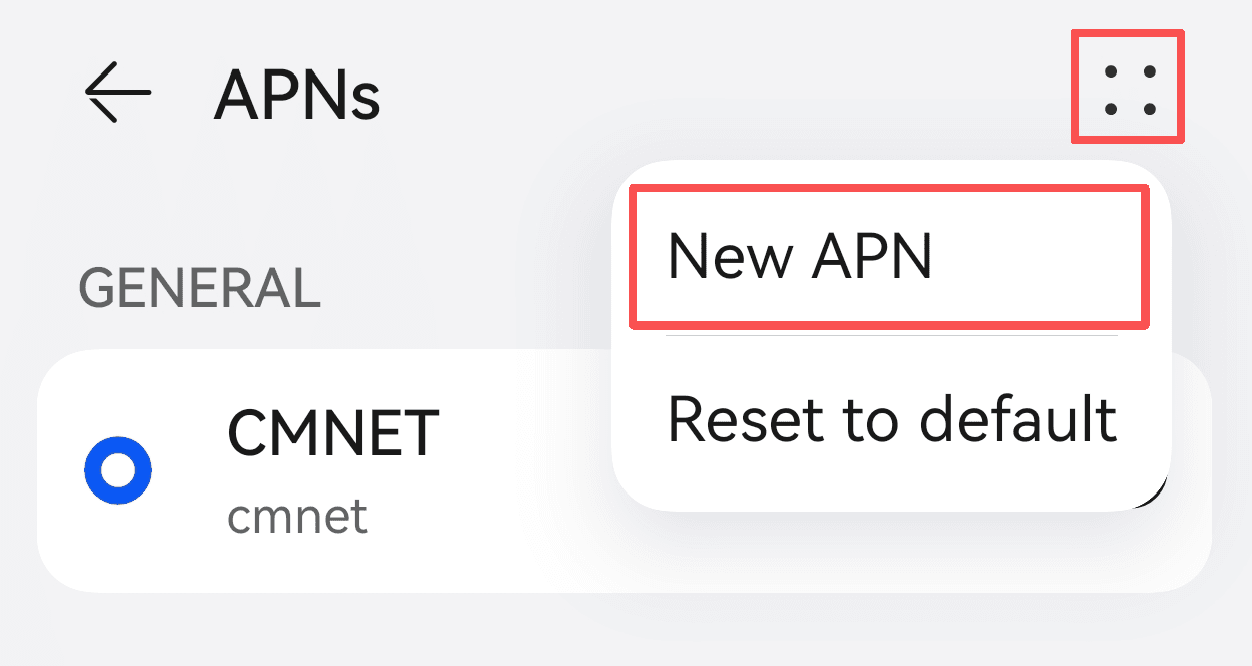
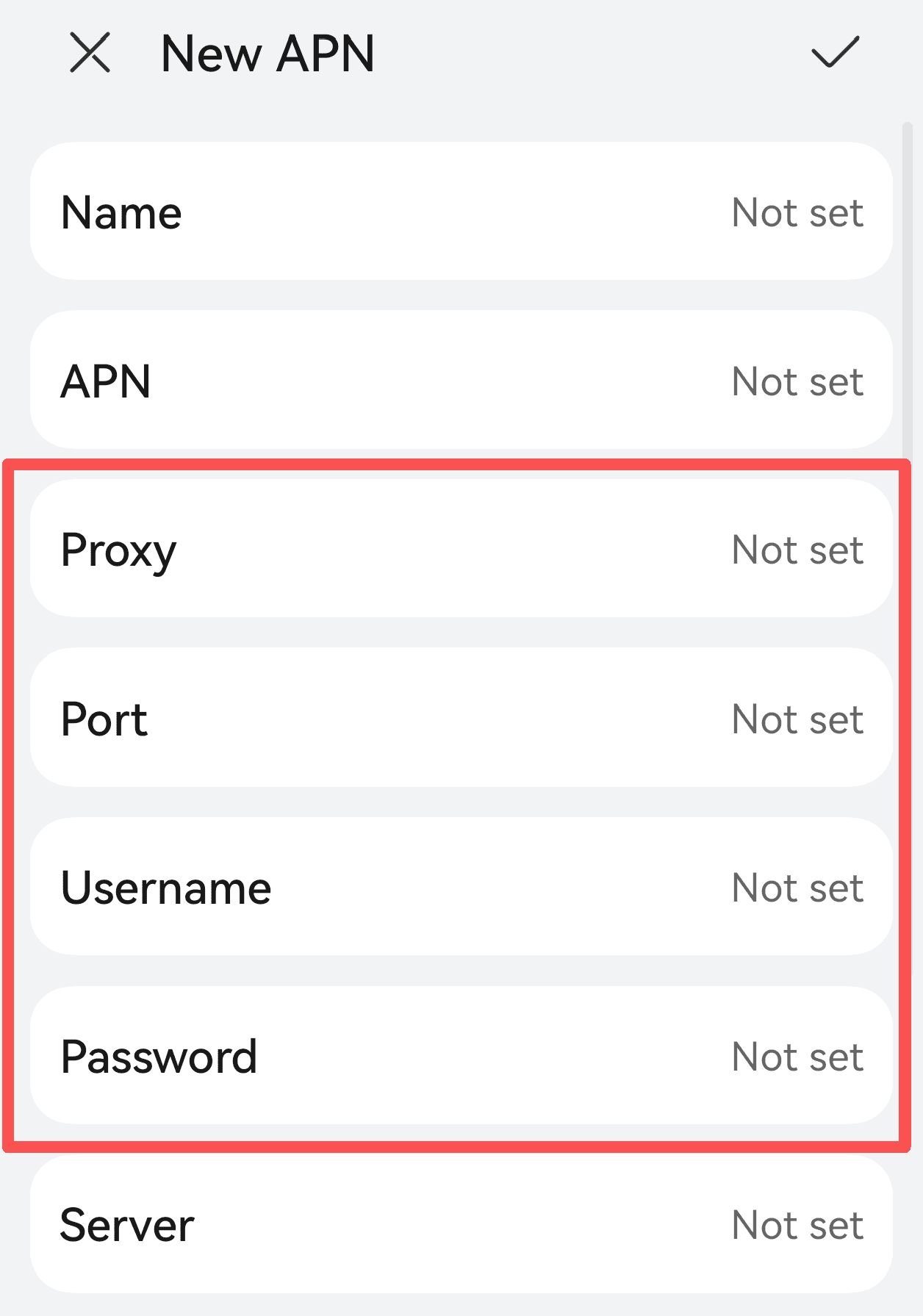
4. Edit the current APN or create a new one
Long-press the current APN and choose “Edit,” or tap the plus icon to add a New APN.
5. Set proxy and port
Locate the following fields in the APN settings:
• Proxy
• Port
Enter the proxy server address, port number, and username/password (if required).
Note: Not all mobile carriers support proxy configuration via APN. This method may not work on all networks.
6. Save settings and reconnect
Save the APN settings, then turn mobile data off and back on, or restart your phone.
Check your IP address to verify the proxy is active.
Additional Notes
• APN proxy settings only affect mobile data, not Wi-Fi connections.
• Some Android versions or apps support per-app proxy settings.
• If APN proxy configuration is unavailable, consider using a global proxy or VPN client.
Practical Tips
Quick proxy switching: Use Wi-Fi management apps or shortcut tools to switch proxy settings faster.
Test proxy availability: After connecting, visit an online IP checker to confirm the IP address has changed.
Protect your privacy: Always choose a reliable proxy provider to avoid data leaks.
IPDeep Proxy for Android Devices
Provides static/dynamic residential IPs and static/dynamic data center IPs for cross-border business, helping you bypass regional restrictions while ensuring security and stability.
Coverage in 200+ Countries & Regions
Globally distributed nodes to support cross-region business needs
High Anonymity & Security
Multi-layer anonymity mechanisms to protect privacy and data security
99.9% Uptime
Highly reliable infrastructure ensuring continuous business operations
24/7 Customer Support
Round-the-clock technical support with fast response times
FAQs
1. Cannot access the internet after setting up a proxy?
• Check whether the proxy address and port are correct
• Ensure the proxy server is online
• Verify your network connection
• Turn Wi-Fi off and on again
2. Proxy requires authentication but cannot be set?
System proxy settings may not support username/password authentication. Use a proxy app or a VPN that supports authentication.
3. Some apps do not work with the proxy?
Some apps bypass system proxy settings and require individual configuration or a global proxy solution.